
Graphing Binary Data with Plotly
This article shows how to visualize binary files saved with the FileWriteVar instruction of the OMRON NX/NJ series using Plotly.
Graphing in a Browser with Plotly
Plotly is an open source graphing library. It can be used from many programming languages such as Python, R and JavaScript
This time I used JavaScript so it can display on a PC alone without a server
(the method here loads it over the network, but you can also download the library and run it locally)
Overview of visualizing PLC binary data
This shows how to save entire structures to an SD card with the FileWriteVar instruction and display graphs in a browser
Here we record XYZ servo command positions at the primary period (2 ms) and display the trajectory as a 3D graph
We also record analog input data at a 0.2 ms period (5 kHz) and display it as a 2D graph
In both cases the data is recorded in a structure and saved entirely to the SD card as a binary file
The steps are
- Store data in a structure on the PLC
- When storage is complete, save the whole structure to the SD card with the FileWriteVar instruction
- Open the HTML on a PC and load the saved file
- The graph is displayed (graphs like the ones below)
2D Graph Example
This is an example of graphing analog input data
3D Graph Example
This is an example of graphing the trajectory of XYZ servo axes
Graph display with the FileWriteVar sample
Collect data in the sample structure and save it to a file
Open the saved file with the sample HTML "plot.html" in a browser
To try it quickly
If you just want to see the HTML display, download the sample, open "plot.html" and load the bin data included in the sample

2D graph

Ladder explanation
- On the rising edge of the LogWrite flag, the first ST runs and creates the file name and sets additional data such as the serial number
- The second ST runs every scan and records analog 1 and 2 data from the analog unit
- Index counts scans, and when the specified number of data points is reached, the LogEnd flag is set and recording ends
- When the LogEnd flag turns ON, or on the falling edge of the LogWrite flag, the whole structure is saved to SD with the FileWriteVar instruction
3D graph
Run "Servo operation log" in the sample project to put data in the structure and save it to a file
Ladder explanation
- On the rising edge of the LogWrite flag, the first ST runs and creates the file name and sets additional data such as the serial number
- The second ST runs every scan and records the command position (Cmd.Pos) and feedback current position (Act.Pos) of each servo axis
- Index counts scans, and when the specified number of data points is reached, the LogEnd flag is set and recording ends
- When the LogEnd flag turns ON, or on the falling edge of the LogWrite flag, the whole structure is saved to SD with the FileWriteVar instruction
Displaying the saved file in a browser


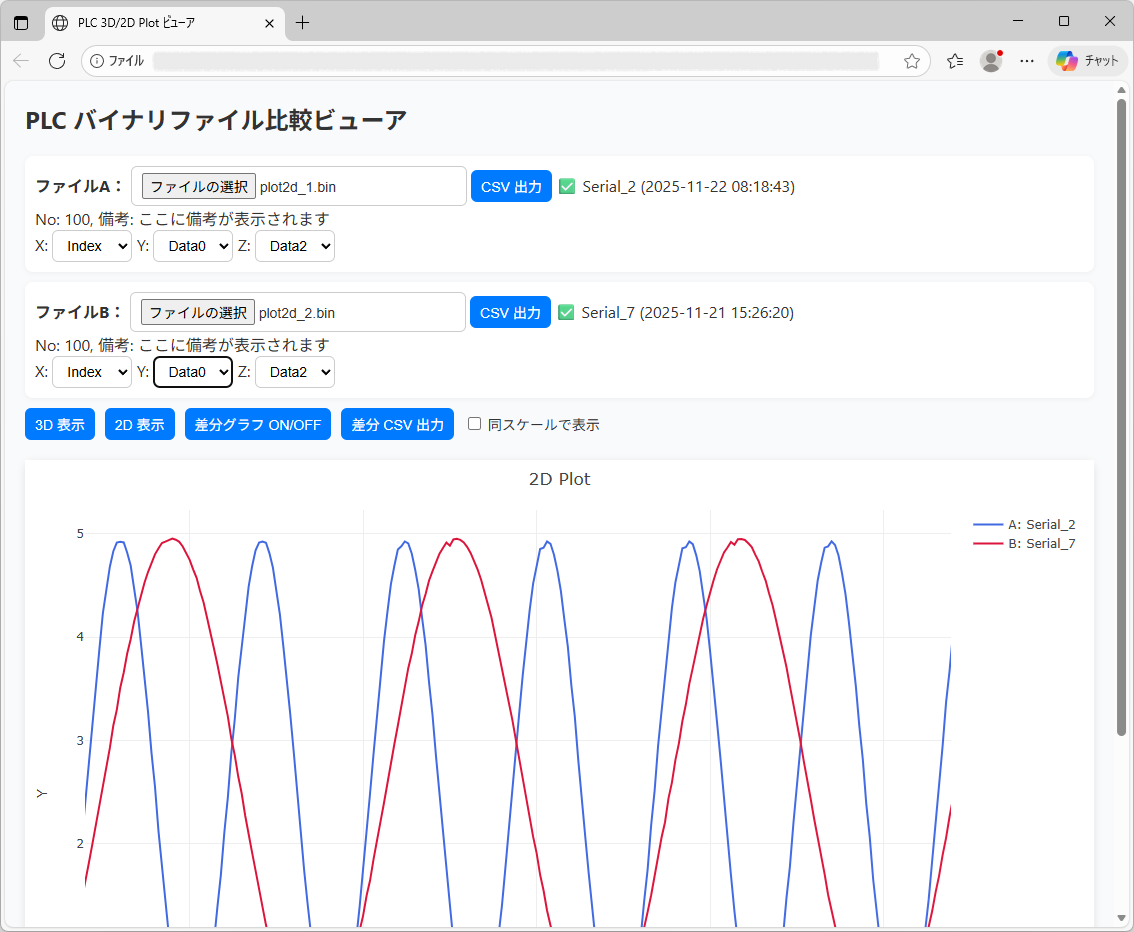
Displaying 2D analog data
Copy the file "logyyyyMMddHHmmss.bin" saved on the SD card to the PC and open it with the [Choose File] button for File A
The figure below shows the files "plot2d_1.bin" and "plot2d_2.bin" opened with Index set as the X axis
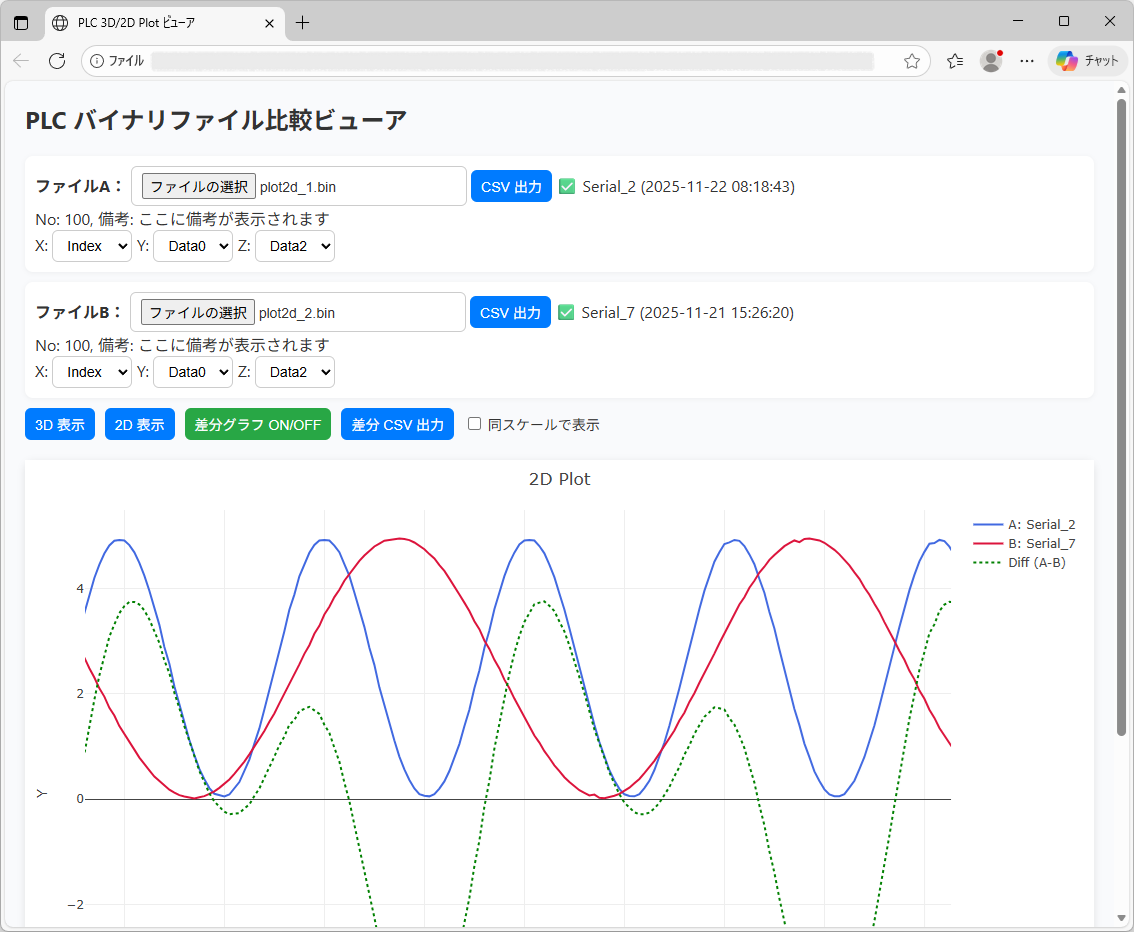
The difference between A and B can also be displayed
Displaying 3D servo XYZ axes
Copy the file "logyyyyMMddHHmmss.bin" saved on the SD card to the PC and open it with the [Choose File] button for File A
The figure below shows the files "plot2d_1.bin" and "plot2d_2.bin" opened with Index set as the X axis

Summary of PLC data visualization
Various displays are possible by selecting X, Y and Z axis data from the collected Data0-9
For example, the sample puts Index in Data9, so you can set the X axis to Index and select the data to show on the Y axis for a 2D display
It also lets you load data for comparison as File B and compare


Creating a Plotly graph tool with ChatGPT
With ChatGPT, you can quickly create an HTML tool that analyzes binary data acquired by the PLC.
This "Plot.html" was created by ChatGPT
If you are interested, paste the HTML of this Plot.html into ChatGPT with the changes you want
Note
When changing the contents of a structure, padding (empty space for memory alignment) may be created between members
Check the start position of each structure member and the position of padding with a binary editor and adjust

Example prompt for having ChatGPT create Plot.html
Extensions
By instructing it in the prompt, you can add things like Plotly's animation features
FAQ
What is Plotly?
Plotly is an open-source graphing library that can be used from JavaScript, Python and more.
Can data saved with FileWriteVar be graphed?
Yes. Binary data saved with FileWriteVar can be loaded and displayed as 2D or 3D graphs with Plotly.
Can PLC servo trajectories be shown in 3D?
Yes. By recording XYZ axis data, the trajectory can be displayed using Plotly's 3D graph features.
Can ChatGPT create the Plotly HTML?
Yes. By specifying the data structure and display requirements to ChatGPT, you can generate an HTML tool using Plotly.
