
Connecting to AWS IoT Core via MQTT
Overview
Let's connect a PLC via MQTT to IoT Core on Amazon Web Services (AWS Cloud) and exchange messages
Once data can be sent to IoT Core, it can be handled by AWS services (Lambda, DynamoDB, etc.)
As an example, how to insert data from a PLC into DynamoDB is covered on a separate page
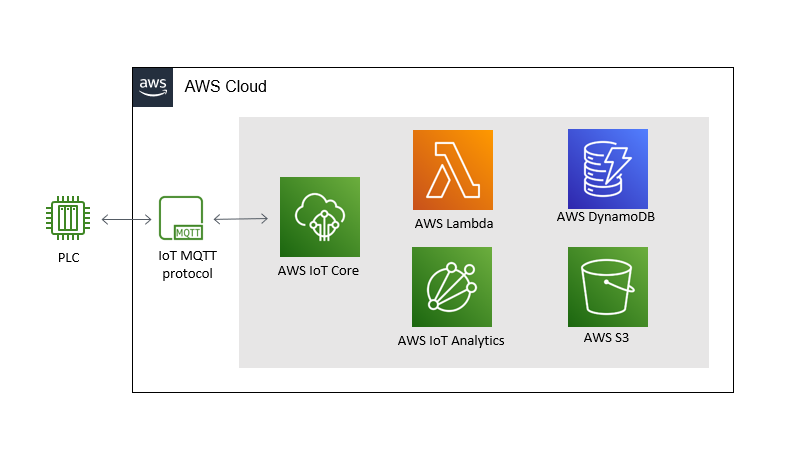
Configuration
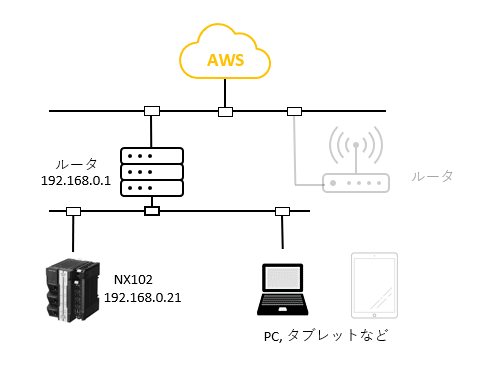
Preparation
Preparation on the AWS side
Create an AWS account and download the client certificate and private key in IoT Core
For the steps, see Preparing for MQTT connection to AWS IoT Core in the how-to navigator
Downloading the PLC library
Download it here
OMRON official MQTT communication library download page
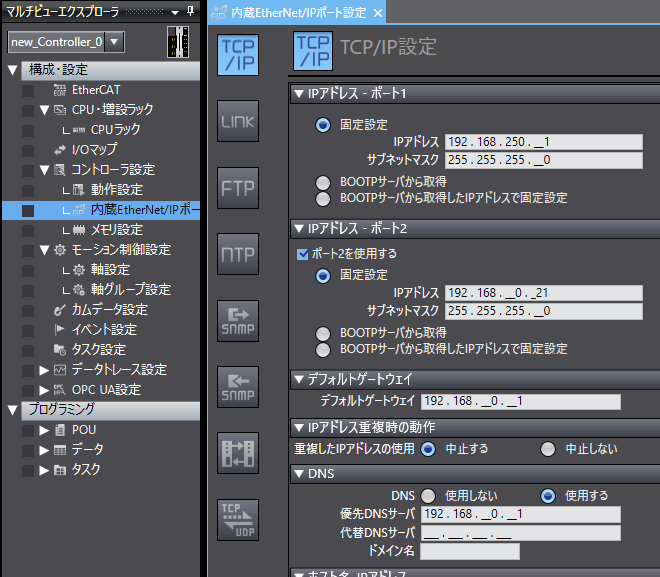
PLC network settings
Set the PLC network settings in Sysmac Studio as follows
Secure socket settings for the PLC CPU unit
The basic flow is
- Put the PLC in Program mode
-
Run the "Secure Socket Setting Command" shortcut in the folder C:\ProgramData\Omron\Sysmac Studio\StartMenu\Sysmac Studio\Tools
(or C:\ProgramData(x86)\Omron\Sysmac Studio\StartMenu\Sysmac Studio\Tools) -
Transfer the certificate and key files to the PLC
C:\ProgramData\Omron\Sysmac Studio\StartMenu\Sysmac Studio\Tools\TLSSettingTool>tlsconfig setSessionInfo /id 0 /key "C:\private\xxx-private.pem.key" /cert "C:\certs\xxx-certificate.pem.crt" /ip:192.168.10.201 /f
(Match the xxx part of xxx-private.pem.key and xxx-certificate.pem.crt to the names of the downloaded files. You may rename them if the names are long)
NOTE
If typing in the command prompt is tedious, drag a file from Explorer into the command prompt where the file name goes, and the file name is entered
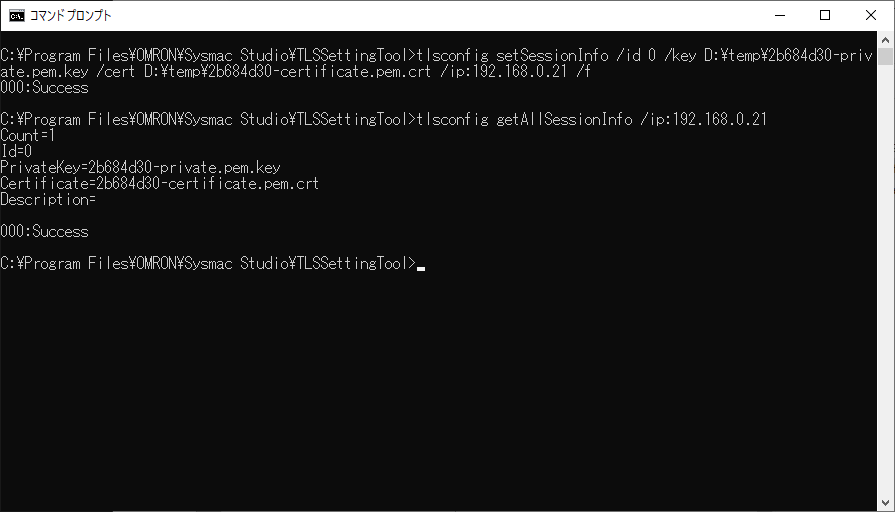
For detailed steps, see "A-3-6 Secure Socket Settings for the CPU Unit" in the MQTT library manual
The library manual is created under the folder C:\OMRON\Data\Lib\MQTT_Comm after setup
PLC settings
Adding the MQTT library
Select [Project] - [Library] - [Library Reference] from the Sysmac Studio menu and add the downloaded MQTT library in the Library Reference dialog

Creating the program
Connecting to AWS IoT Core
Establish a connection with AWS using the MQTT client (MQTTClient)
Turn trigger1 ON; when Connected turns ON, it is connected
While connected, messages can be exchanged
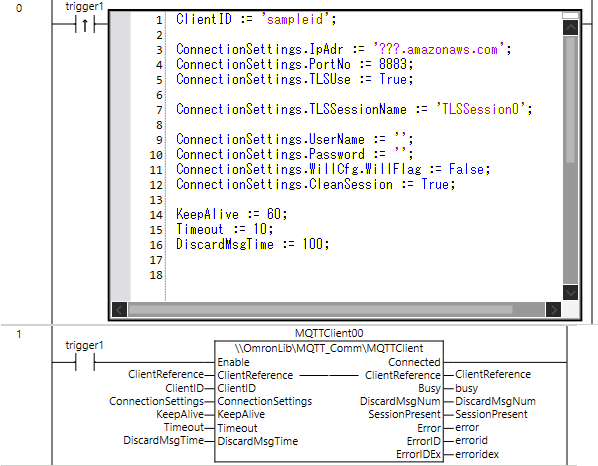
For ConnectionSettings.IpAdr, enter the endpoint from the AWS IoT Core settings screen
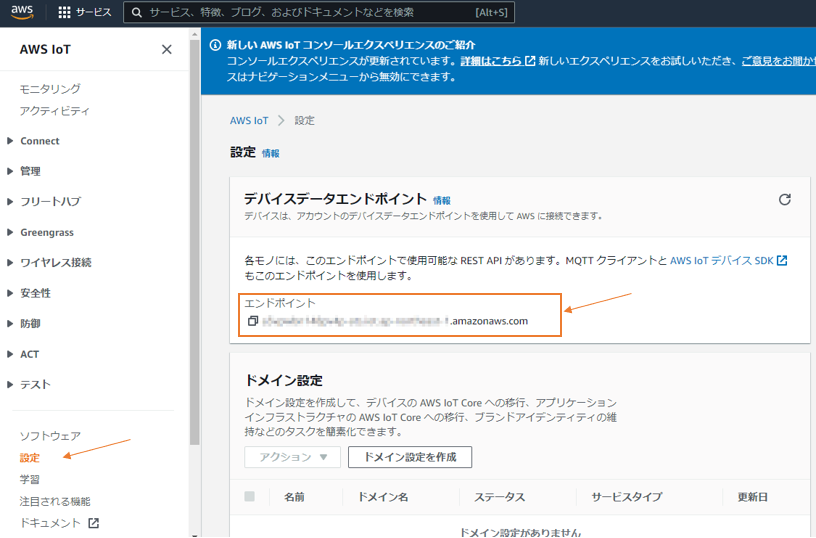
| Input variable | Description |
|---|---|
| ClientID | Any string |
| ConnectionSettings.IpAdr | Enter the AWS IoT Core endpoint |
| ConnectionSettings.PortNo | 8883 when TLSUse=true 1883 when TLSUse=false |
| ConnectionSettings.TLSUse | Use secure socket communication |
| ConnectionSettings.TLSSessionName | TLSSession0 to 59 Append the id number set with "tlsconfig setSessionInfo /id 0 ...." in the command prompt after TLSSession |
| ConnectionSettings.UserName | Not needed when using certificates |
| ConnectionSettings.Password | Not needed when using certificates |
| ConnectionSettings.illCfg.WillFlag | Use the Will function |
| ConnectionSettings.CleanSession | Clear and connect when reconnecting after disconnection |
| KeepAlive | Keep-alive timer |
| Timeout | Timeout (s) |
| DiscardMsgTime | Message discard time (ms) |
Sending a message from the PLC
Send a message with the publish instruction (MQTTPubString)
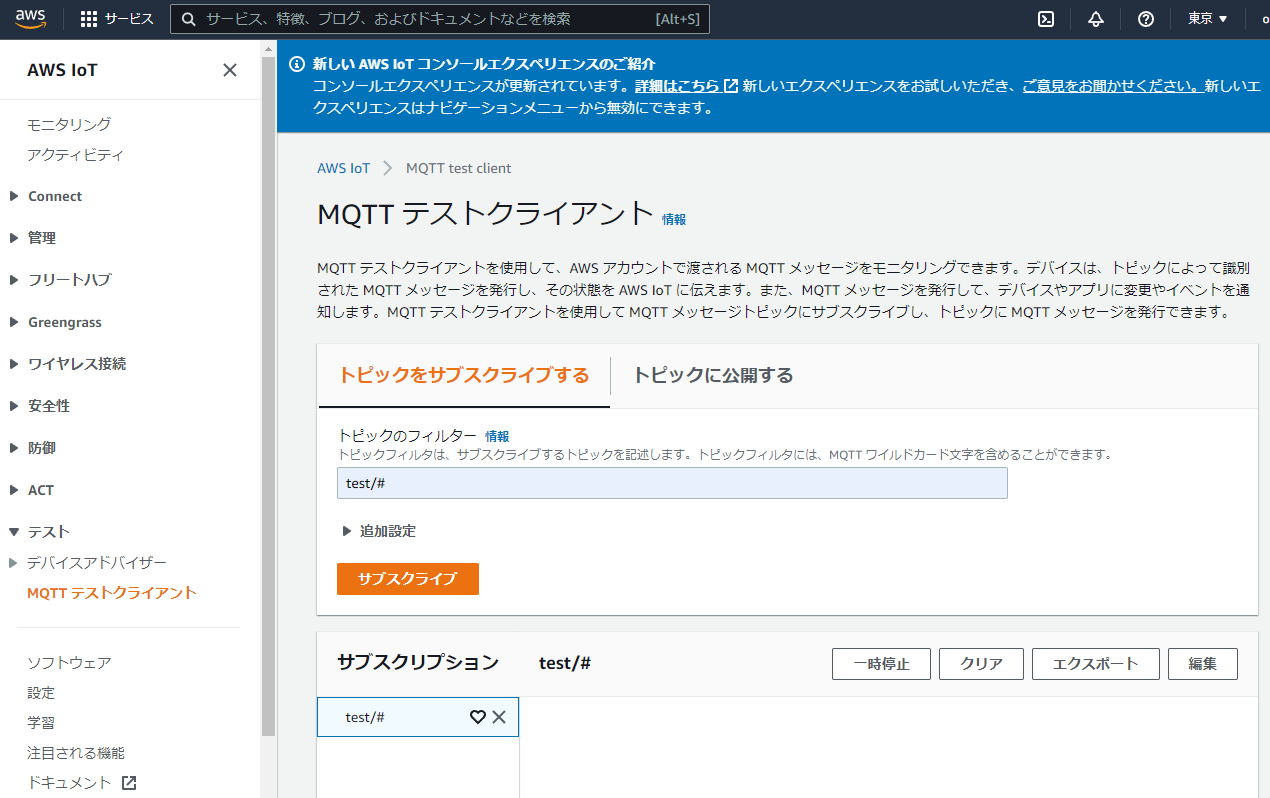
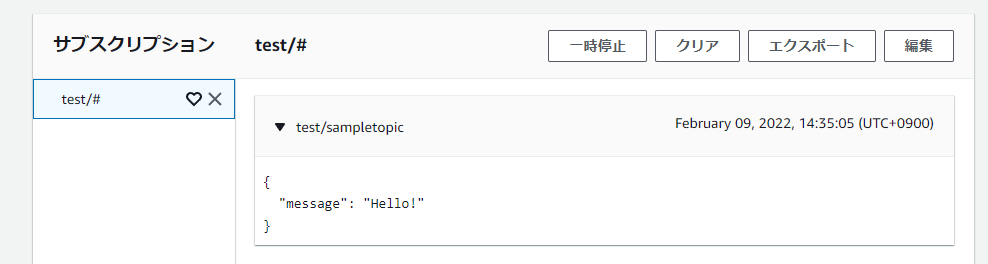
Check the received data with the AWS MQTT test client
In the "Subscribe to a topic" tab, enter "test/#" in the topic filter and click [Subscribe]; "test/#" is added to the subscriptions below
It is now waiting to receive
NOTE
# is a wildcard
A message is shown when a topic whose name starts with "test/" is received
On the PLC, turn trigger2 ON to send a message ({"message":"Hello!"})
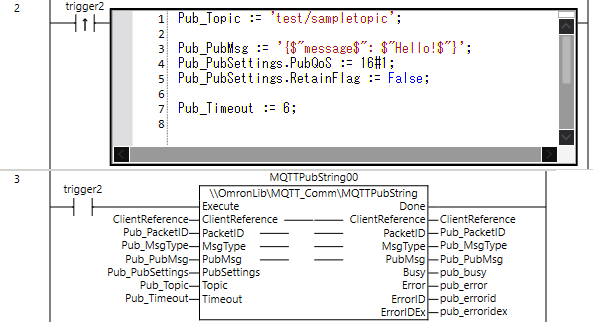
| Input variable | Input variable |
|---|---|
| ClientReference | Variable shared with ClientReference of MQTTClient |
| PacketID | Packet ID |
| MsgType | 0=PUBLISH 1=PUBREL |
| PubMsg | Send message |
| PubSettings.PubQoS | QoS level |
| Topic | Topic name |
| Timeout | Timeout |
When received on the AWS side, the received message is shown
Receiving a message on the PLC
Receive messages with the subscribe instruction (MQTTSubString)
On the PLC, turn trigger3 ON to wait for messages
The MQTTSubString instruction has an Enable input, so it waits to receive while trigger3 is ON
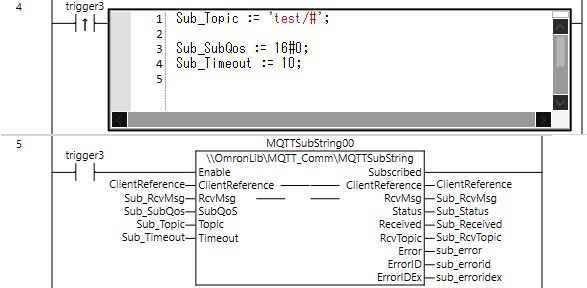
| Input variable | Input variable |
|---|---|
| ClientReference | Variable shared with ClientReference of MQTTClient |
| SubQoS | 0=PUBLISH 1=PUBREL |
| Topic | Specify the topic |
| Timeout | Timeout |
Send a message from the AWS MQTT test client
In the "Publish to a topic" tab, enter "test/message1" as the topic name, enter the message in the message payload and click [Publish]
The sent message is shown in the subscriptions
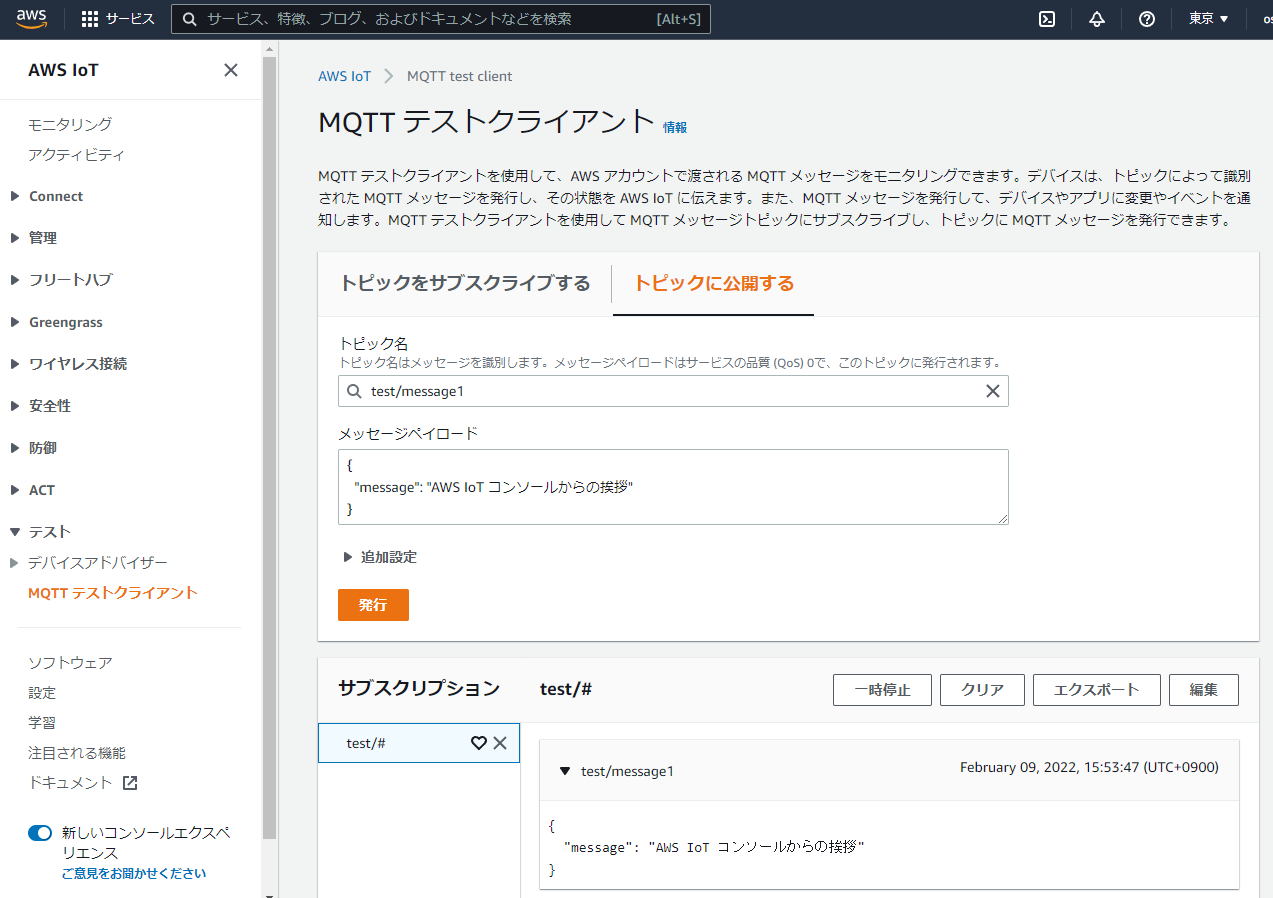
When the PLC receives a message, the received message goes into the output variable
| Output variable | Value | Description |
|---|---|---|
| Subscribed | TRUE | Subscribing |
| RcvMsg | {$L $"message$": $"Hello from the AWS IoT Core console$"$L} | Receive message |
| Status | 0 | Execution status |
| Received | TRUE when received | Message received |
| RcvTopic | test/message1 | Topic name |
