
FTP communication
Explains file transfer using the PLC's built-in FTP server function and the FTPPutFile, FTPGetFile and FTPGetFileList instructions.
Overview
Explains the PLC's FTP server function and how to use the FTP client communication instructions
FTP server
The PLC's built-in Ethernet port has an FTP server function
FTP client communication instructions
Instructions are provided for transferring files from the PLC to an FTP server using FTP commands
FTP server function
Files on the SD card can be read and written by issuing FTP commands from an external PC or similar to the PLC's built-in Ethernet port
This setting is not needed if you only use the FTP client
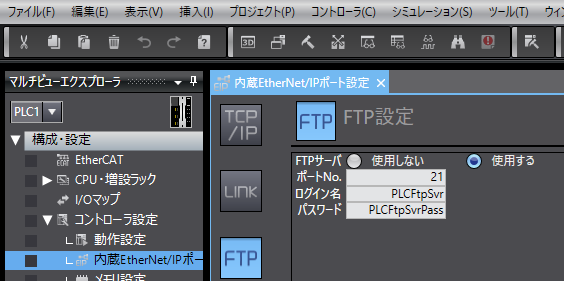
Enabling the PLC FTP server
To enable the FTP server, select [Use] with the [FTP Server] radio button under [FTP] in [Built-in EtherNet/IP Port]
Port 21 is generally used
Set the login name and password
FTP client communication instructions
Instructions are provided for uploading/downloading files to and from an FTP server, getting file lists and deleting files
| FTPPutFile | Uploads files on the PLC's SD card to the FTP server |
| FTPGetFile | Downloads files on the FTP server to the PLC's SD card |
| FTPGetFileList | Gets the list of files on the FTP server |
| FTPRemoveDir | Deletes a directory on the FTP server |
| FTPRemoveFile | Deletes a file on the FTP server |
NOTE
FTPGetFileList, FTPRemoveDir and FTPRemoveFile can also be executed on the PLC's own SD card
In that case, enable the FTP server function
FTPPutFile
FTPPutFile function block
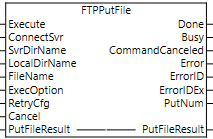
- ConnectSvr
- Destination FTP server settings
- SvrDirName
- FTP server directory
- LocalDirName
- Local directory
- FileName
- File name
- ExecOption
- Execution retry settings
- RetryCfg
- Execution retry settings
- Cancel
- Cancel
- CommandCanceled
- Cancel completed
- PutNum
- Number of upload files
- PutFileResult
- Uploaded file results
| Variables | Description | Data type | |
|---|---|---|---|
| ConnectSvr | Destination FTP server setting parameters | _sFTP_CONNECT_SVR | |
| Adr | IP address or host name | STRING[200] | |
| PortNo | FTP server port number | UINT | |
| UserName | FTP server user name | STRING[33] | |
| Password | Password | STRING[33] | |
| SvrDirName | FTP server root directory Default='' | STRING[256] | |
| LocalDirName | SD card directory Default='/' | STRING[256] | |
| FileName | File name (wildcards allowed) | STRING[256] | |
| ExecOption | FTP execution options | _sFTP_CONNECT_SVR | |
| PassiveMode | Passive mode TRUE: Passive FALSE: Active | BOOL | |
| ASCIIMode | ASCII mode TRUE: ASCII FALSE: Binary | BOOL | |
| FileRemove | Delete file after transfer | BOOL | |
| OverWrite | Overwrite the file at the destination | BOOL | |
| Reserved | Reserved | BOOL[0..7] | |
| RetryCfg | Instruction retry settings | _sFTP_RETRY_CFG | |
| TimeOut | Timeout 0-60 s, default: 20 s | UINT | |
| RetryNum | Retry count, default: 0 | UINT | |
| RetryInterval | Retry interval, default: 1 s | UINT | |
| PutFileResult | Results of uploaded files | _sFTP_FILE_RESULT | |
| Name | File name | STRING[256] | |
| TxError | Transfer error | BOOL | |
| RemoveError | RemoveError | BOOL | |
| Reserved | Reserved | Byte[0..3] | |
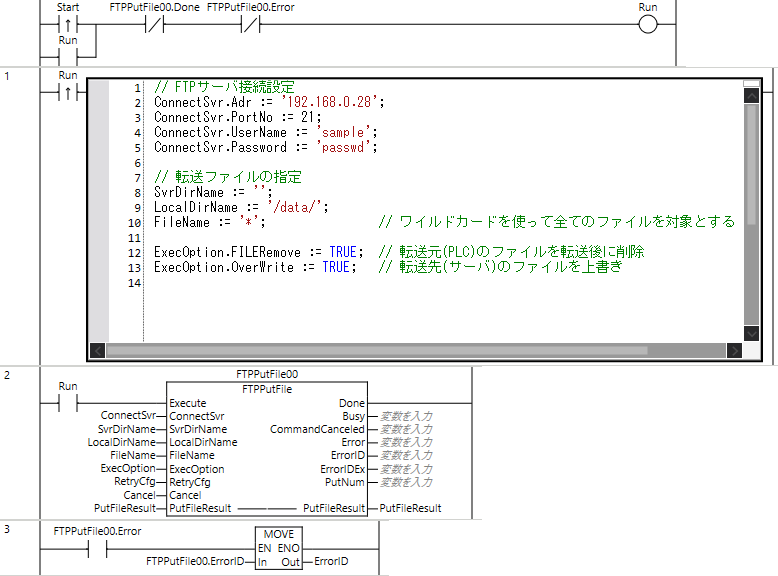
Samples
FTPGetFile
FTPGetFile function block
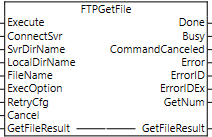
- ConnectSvr
- Destination FTP server settings
- SvrDirName
- FTP server directory
- LocalDirName
- Local directory
- FileName
- File name
- ExecOption
- Execution retry settings
- RetryCfg
- Execution retry settings
- Cancel
- Cancel
- CommandCanceled
- Cancel completed
- GetNum
- Number of download files
- GetFileResult
- Downloaded file results
| Variables | Description | Data type | |
|---|---|---|---|
| GetFileResult | Results of downloaded files | _sFTP_FILE_RESULT | |
| Name | File name | STRING[256] | |
| TxError | Transfer error | BOOL | |
| RemoveError | RemoveError | BOOL | |
| Reserved | Reserved | Byte[0..3] | |
* Other variables are the same as FTPPutFile
Samples
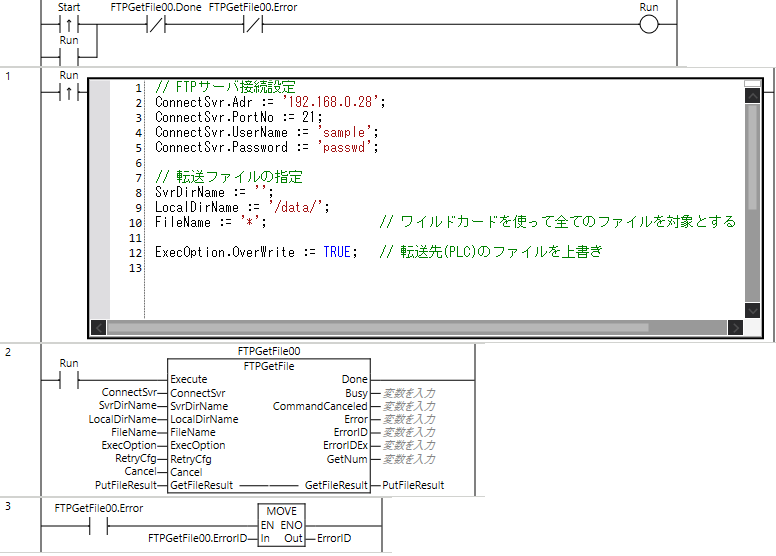
Sample that selects files with GetFileList and uploads them
FTPPutFile function block
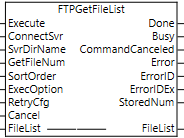
- ConnectSvr
- Destination FTP server settings
- SvrDirName
- FTP server directory
- GetFileNum
- Number of files to get
- SortOrder
- Sort order
- ExecOption
- FTP execution options
- RetryCfg
- Execution retry settings
- Cancel
- Cancel
- CommandCanceled
- Cancel completed
- StoredNum
- Number of files obtained
- FileList
- File details
| Variables | Description | Data type |
|---|---|---|
| GetFileNum | Number of files to get 1-1000 | UINT |
| Sortorder | File list sort order _NAME_ASC: name ascending _NAME_DESC: name descending | _eFILE_SORT_ORDER |
| StoredNum | Number of files obtained 0-1000 | UINT |
* Other variables are the same as FTPPutFile
Samples
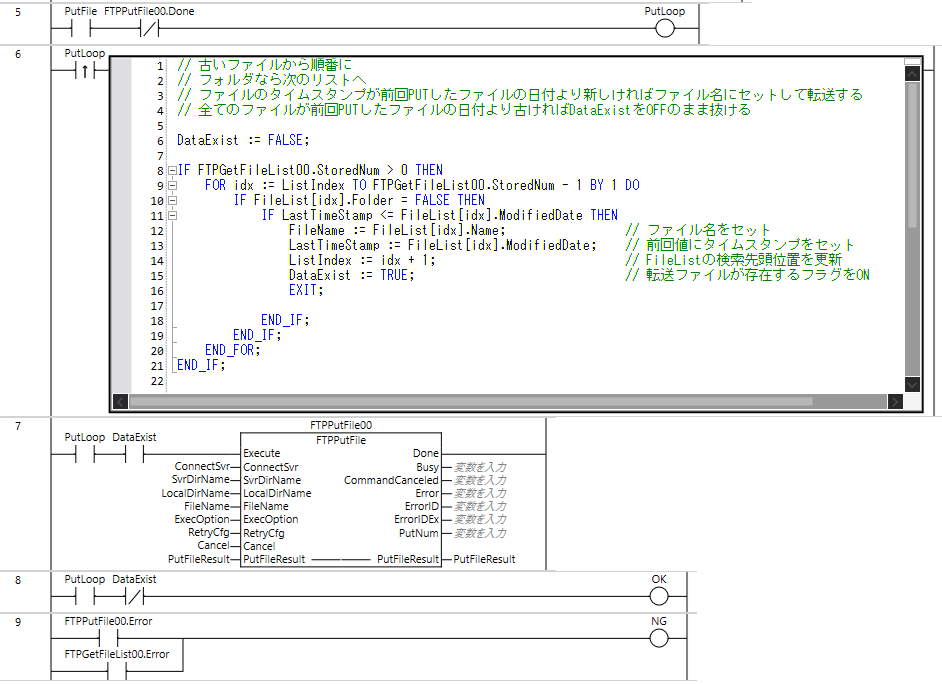
Sample that uploads to the FTP server the files in the data directory of the PLC's SD memory card that are newer than the last transfer date
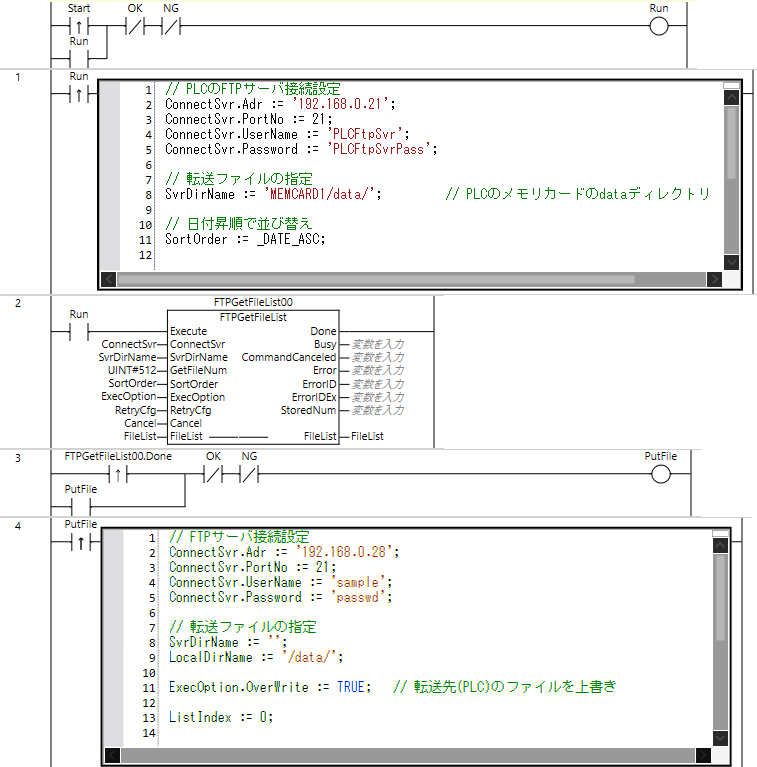
Block 2:
The FTPGetFileList instruction gets the list of files on the PLC's SD memory card in ascending date order
Blocks 6-8:
Loops over the number of files obtained (StoredNum) while checking the file timestamps
- Loop for the number of files (StoredNum)
- Skip if folder
- Last transfer date/time (LastTimeStamp) <= file timestamp
- Upload the file with FTPPutFile
- Return to 1
When all files have been processed, the loop exits with DataExist still OFF, so processing ends if DataExist is OFF
NOTE
The comparison of the last transfer date and timestamp includes equality because, due to FTP specifications, timestamp precision is limited and seconds may be fixed at 0
As a result, multiple files often have the same timestamp, so they are overwritten
ST part
FAQ
Do I need to enable the FTP server function?
Only when using the PLC as an FTP server. It is not needed when using only the FTP client function.
What is the difference between Passive and Active mode?
Passive mode is recommended in firewalled environments.
Can wildcards be used?
Wildcards can be specified in FileName of FTPPutFile.
