
Recording and Checking PLC Data in SQLite (KV Host Link × Python)
A sample that reads KEYENCE KV series data every second with a Python program on a Raspberry Pi and records it in an SQLite database.
Everything from creating the program to running it in a Python virtual environment (venv), running it automatically at startup and checking the recorded data can be tried using just this page.
SQLite is a lightweight database whose entire database is stored in a single file (e.g. plc_log.db). It needs no server setup and is built into Python, so it is well suited to recording PLC data easily.
Overview
| Procedure | Description |
|---|---|
| 1. Recording program | A Python program that reads DM0 to DM3 of the KV every second and records them in SQLite |
| 2. Running steps | Creating a virtual environment (venv), installing libraries, running, and autostart with systemd |
| 3. Checking the data | Four methods: the sqlite3 command, Python, GUI tools and CSV output |
Environment
| Item | Description |
|---|---|
| PLC | KEYENCE KV series (KV-8000 etc., models supporting Ethernet Host Link) |
| Raspberry Pi | Raspberry Pi 4 Model B / Raspberry Pi OS (64-bit, Bookworm or later) |
| Python | The OS's standard Python 3 + virtual environment (venv) |
| Library | kvhostlink-udp (Host Link communication), sqlite3 (standard library) |
| Database | plc_log.db (table name: log) |
Recording Program
A minimal program that reads DM0 to DM3 of a KEYENCE KV series PLC every second and records them in an SQLite database.
import sqlite3
import time
import datetime
from kvhostlink import kvHostLink      # pip install kvhostlink-udp

PLC_IP   = '192.168.250.10'
INTERVAL = 1.0                         # Collection period [s]

db = sqlite3.connect('plc_log.db')
db.execute('''CREATE TABLE IF NOT EXISTS log(
                ts  TEXT,
                dm0 INTEGER, dm1 INTEGER, dm2 INTEGER, dm3 INTEGER)''')

kv = kvHostLink(PLC_IP)

while True:
    try:
        rcv = kv.reads('DM0.U', 4)     # e.g. b'00002 00001 00002 00003\r\n'
        values = [int(v) for v in rcv.decode().split()]
        ts = datetime.datetime.now().isoformat(timespec='seconds')
        db.execute('INSERT INTO log VALUES (?,?,?,?,?)', [ts] + values)
        db.commit()
    except Exception as e:
        print('Communication error:', e)        # Keep collecting even if communication drops
    time.sleep(INTERVAL)
The structure of the recorded table is as follows.
| Column name | Type | Description |
|---|---|---|
| ts | TEXT | Recorded time (e.g. 2026-10-12T21:15:42) |
| dm0~dm3 | INTEGER | Values of DM0 to DM3 (unsigned 16-bit) |
For OMRON (FINS) and Mitsubishi (MC protocol), you can record in the same way just by replacing the reading part with the functions of each library.
Running Steps (Python Virtual Environment venv)
On Raspberry Pi OS Bookworm or later, running pip install as is fails with an error like the following and libraries cannot be installed.
$ pip install kvhostlink-udp
error: externally-managed-environment

× This environment is externally managed
╰─> To install Python packages system-wide, try apt install
    python3-xyz, where xyz is the package you are trying to
    install.
    ...
This mechanism prevents pip from breaking the Python environment managed by the OS. When using libraries not available via apt, create a project-specific Python environment called a virtual environment (venv) and install into it with pip.
~/plclog and the user name is pi. If you set a different user name in Raspberry Pi Imager, replace /home/pi with your home directory.
1. Create the working directory
$ mkdir -p ~/plclog
$ cd ~/plclog
2. Create and activate the virtual environment
In case the venv feature is not installed, install the package first (nothing changes if it is already installed).
$ sudo apt install -y python3-venv
$ python3 -m venv .venv
$ source .venv/bin/activate
When activated, (.venv) appears at the start of the prompt. The python and pip run in this state are those of the virtual environment.
3. Install the library
(.venv) $ pip install kvhostlink-udp
(.venv) $ pip list
When kvhostlink-udp appears in the pip list output, installation is complete. sqlite3 is part of the Python standard library, so no additional installation is needed.
pip install --break-system-packages, but it is not recommended because it can break the OS Python environment.
4. Save the program
(.venv) $ nano plc_logger.py
Paste the recording program, change PLC_IP to the IP address of the KV you connect to and save (in nano, save with Ctrl+O → Enter and exit with Ctrl+X).
Before running, check that the Raspberry Pi can communicate with the PLC.
(.venv) $ ping -c 3 192.168.250.10
5. Run it
(.venv) $ python plc_logger.py
If it keeps running without displaying anything, data is being recorded every second (if "Communication error" appears, check the IP address and the KV settings). Press Ctrl+C to stop.
The recorded data can be checked with the methods in the next section.
6. Running it next time
After logging in again, activate the virtual environment before running.
$ cd ~/plclog
$ source .venv/bin/activate
(.venv) $ python plc_logger.py
If you specify the virtual environment's Python directly, you can run it without source. To leave the virtual environment, run deactivate.
$ ~/plclog/.venv/bin/python ~/plclog/plc_logger.py7. Run automatically at startup (systemd)
In actual operation, register it as a systemd service so collection starts automatically when the Raspberry Pi is powered on. Specify the virtual environment's Python with its full path in ExecStart.
$ sudo nano /etc/systemd/system/plc-logger.service[Unit]
Description=PLC data logger (KV HostLink -> SQLite)
After=network-online.target
Wants=network-online.target
[Service]
WorkingDirectory=/home/pi/plclog
# -u: output print immediately to the log (no buffering)
ExecStart=/home/pi/plclog/.venv/bin/python -u /home/pi/plclog/plc_logger.py
User=pi
Restart=always
RestartSec=5
[Install]
WantedBy=multi-user.target$ sudo systemctl daemon-reload $ sudo systemctl enable --now plc-logger.service $ systemctl status plc-logger.service $ journalctl -u plc-logger -f
To stop it, run sudo systemctl stop plc-logger; to stop autostart, run sudo systemctl disable plc-logger. Because WorkingDirectory is specified, the database is created at /home/pi/plclog/plc_log.db.
Checking the Data (4 Methods)
An SQLite file cannot be read just by opening it. Here are four ways to check the recorded data.
Comparison of the four methods
| Method | Where to use | Preparation | Suited for |
|---|---|---|---|
| 1. sqlite3 command | Raspberry Pi (SSH) | Just one package via apt | When you want to quickly check that data is being recorded, or watch it grow in real time |
| 2. Python | Raspberry Pi (SSH) | Not needed (standard library) | When you want to check without installing anything, or script the check |
| 3. GUI tools | PC | Install DB Browser for SQLite or similar | When you want to look carefully in table form, or search while changing conditions |
| 4. CSV output | Raspberry Pi → PC | Not needed (sqlite3 or Python) | When you want to graph in Excel or hand over data for reports |
Method 1: sqlite3 Command
The official SQLite command-line tool. Log in to the Raspberry Pi via SSH to use it.
Installation
$ sudo apt install -y sqlite3
$ sqlite3 --version
Checking in interactive mode
Start it with the database file specified and the sqlite> prompt appears.
$ sqlite3 plc_log.db-- List tables .tables -- Table structure (CREATE statement) .schema log -- Easier-to-read display (show column names, align columns) .headers on .mode column -- Latest 10 rows SELECT * FROM log ORDER BY ts DESC LIMIT 10; -- Row count SELECT COUNT(*) FROM log; -- Exit .quit
Display example.
ts                   dm0  dm1  dm2  dm3
-------------------  ---  ---  ---  ---
2026-10-12T21:15:42  2    1    2    3
2026-10-12T21:15:41  2    1    2    3
2026-10-12T21:15:40  2    1    2    3
. are sqlite3-specific and do not need a trailing ;. SQL statements (SELECT etc.) need a trailing ;. With .mode table, results are shown in a bordered table.
Checking with a one-line command
You can also specify SQL directly and show only the result without entering interactive mode.
$ sqlite3 -header -column plc_log.db "SELECT * FROM log ORDER BY ts DESC LIMIT 10;"Watching records accumulate in real time
Combined with the watch command, the latest data is redisplayed every second (exit with Ctrl+C).
$ watch -n 1 'sqlite3 -header -column plc_log.db "SELECT * FROM log ORDER BY ts DESC LIMIT 5;"'Commonly used SQL examples
-- Extract a period (ts is an ISO-format string, so it can be compared as a string)
SELECT * FROM log
WHERE ts BETWEEN '2026-10-12T09:00:00' AND '2026-10-12T10:00:00';

-- Latest row
SELECT * FROM log ORDER BY ts DESC LIMIT 1;

-- Average, maximum and minimum per minute (DM0)
SELECT substr(ts, 1, 16) AS minute,
       AVG(dm0) AS avg_dm0, MAX(dm0) AS max_dm0, MIN(dm0) AS min_dm0
FROM log
GROUP BY minute
ORDER BY minute DESC
LIMIT 10;
Method 2: Python
The sqlite3 module for SQLite is included in Python as standard, so you can check without installing anything.
Checking in one line
$ python3 -c "import sqlite3; [print(r) for r in sqlite3.connect('plc_log.db').execute('SELECT * FROM log ORDER BY ts DESC LIMIT 10')]"Creating a check script
If you check often, a script that shows the table list, row counts and latest data together is convenient.
$ nano show_db.pyimport sqlite3
import sys
db_file = sys.argv[1] if len(sys.argv) > 1 else 'plc_log.db'
limit = int(sys.argv[2]) if len(sys.argv) > 2 else 10
# Open read-only (to avoid accidental changes or creating an empty file)
con = sqlite3.connect(f'file:{db_file}?mode=ro', uri=True)
tables = [r[0] for r in con.execute(
"SELECT name FROM sqlite_master WHERE type='table' ORDER BY name")]
for table in tables:
count = con.execute(f'SELECT COUNT(*) FROM "{table}"').fetchone()[0]
print(f'=== {table} ({count} rows) ===')
cur = con.execute(f'SELECT * FROM "{table}" ORDER BY rowid DESC LIMIT {limit}')
cols = [d[0] for d in cur.description]
print(' | '.join(cols))
for row in cur:
print(' | '.join(str(v) for v in row))
print()
con.close()$ python3 show_db.py $ python3 show_db.py plc_log.db 20
mode=ro (read-only), a wrong file name does not create a new empty database (it raises an error).
Method 3: GUI Tools
GUI tools are convenient when you want to view data in table form or search while changing conditions.
DB Browser for SQLite
The standard free GUI tool for SQLite. It supports Windows, Mac and Linux.
- Install it on your PC from the DB Browser for SQLite download page.
- Copy the database file from the Raspberry Pi to your PC with WinSCP or similar (see "Copying safely" below).
- Open the file in DB Browser for SQLite and select the table on the Browse Data tab to display it in table form.
- To run SQL, use the Execute SQL tab.
sudo apt install -y sqlitebrowser.If you do not intend to change data, it is safer to use "File" > "Open Database Read Only" from the menu.
Copying safely
Copying a file while the collection program is writing to it can occasionally produce a corrupted file. Making a copy with the sqlite3 .backup command before transferring is reliable.
$ sqlite3 plc_log.db ".backup plc_log_copy.db"Transfer the created plc_log_copy.db to your PC and open it.
Viewing in VS Code
If you use VS Code, installing the "SQLite Viewer" extension lets you display .db files in table form just by clicking them. Connecting to the Raspberry Pi with the "Remote - SSH" extension lets you open files directly on the Raspberry Pi without copying them.
Method 4: Export to CSV and View in Excel
Exporting to CSV lets you graph in Excel or hand over data for reports.
Exporting with the sqlite3 command
$ sqlite3 -header -csv plc_log.db "SELECT * FROM log ORDER BY ts;" > plc_log.csvAn example of exporting a specified period.
$ sqlite3 -header -csv plc_log.db "SELECT * FROM log WHERE ts >= '2026-10-12T00:00:00' ORDER BY ts;" > plc_log_1012.csvExporting with Python
If the sqlite3 command is not installed, you can export with only the Python standard library.
import csv
import sqlite3

con = sqlite3.connect('file:plc_log.db?mode=ro', uri=True)
cur = con.execute('SELECT * FROM log ORDER BY ts')

# With utf-8-sig, Japanese text is not garbled when opened in Excel
with open('plc_log.csv', 'w', newline='', encoding='utf-8-sig') as f:
    writer = csv.writer(f)
    writer.writerow([d[0] for d in cur.description])   # column names
    writer.writerows(cur)

con.close()
$ python3 export_csv.pyCopy the exported CSV to your PC with WinSCP or similar and open it in Excel.
When data does not appear
| Symptom | Cause and remedy |
|---|---|
.tables shows nothing | You may be opening an empty file in another location. SQLite creates a new empty database when you specify a file name that does not exist. In the directory where the collection program runs (~/plclog in these steps), run ls -l plc_log.db and check that the file size is increasing. |
| The table exists but the count stays at 0 | An error may be occurring in communication with the PLC. Check whether "Communication error" appears in the terminal running the collection program. |
database is locked appears | The file is open for editing (being written) in a GUI tool or similar. Close the GUI tool or open it read-only. |
| The file cannot be opened (Permission denied) | The collection program was run with sudo, so the file is owned by root. Change the owner with sudo chown pi:pi plc_log.db. |
Summary
With Python and SQLite, one Raspberry Pi can easily record PLC data. Using a virtual environment (venv) lets you add libraries without breaking the OS Python environment, and registering with systemd starts collection just by powering on.
To quickly check recording, use the sqlite3 command; to check without installing anything, use Python; to look carefully in table form, use a GUI tool; and to process in Excel, use CSV output.
Related pages

What is a Raspberry Pi
Introduces the history, specs of current models and PLC integration configurations

Initial setup and server construction
Setup steps for static IP, Apache, PHP and MariaDB
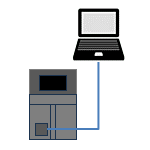
KEYENCE Host Link communication
Host Link communication with KEYENCE PLCs from Python