
How to Connect to an OPC UA PLC with UaExpert (No Security)
Downloading UaExpert
 Unified Automation official UaExpert download
Connecting UaExpert and the PLC
Start UaExpert
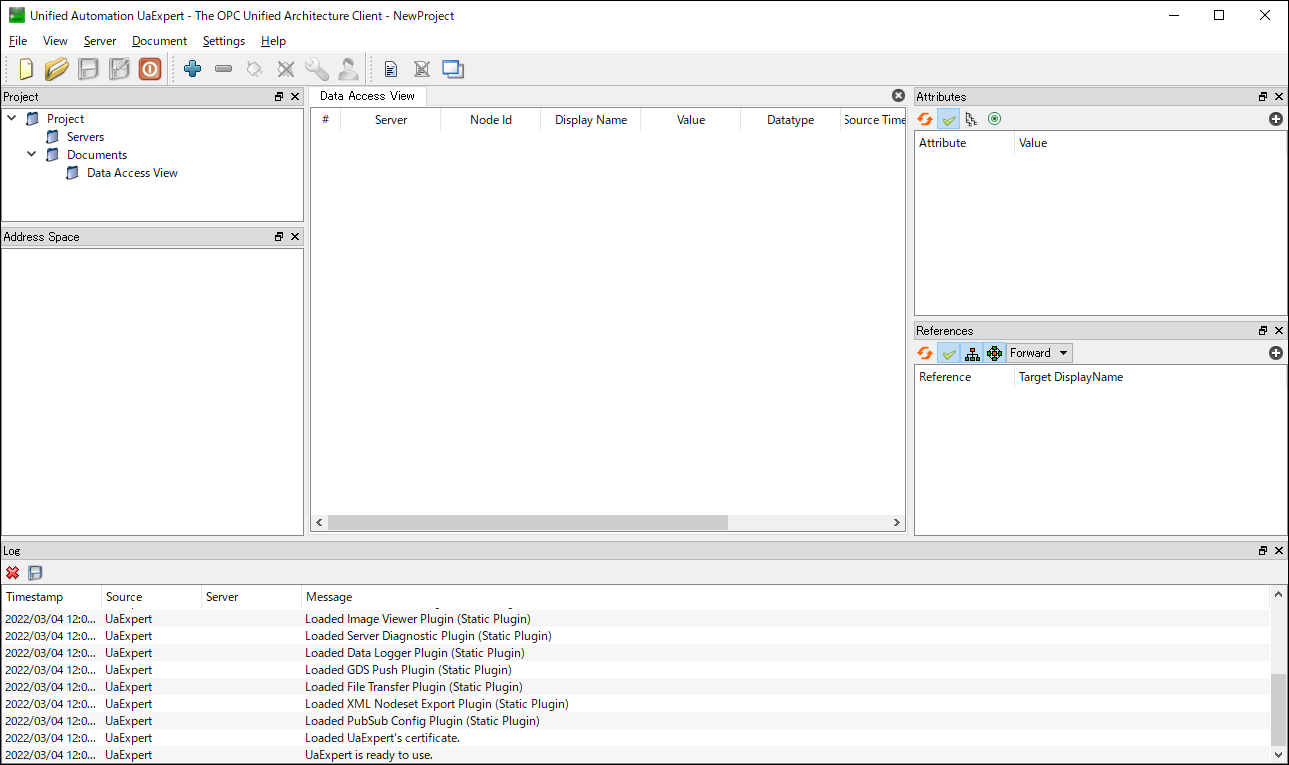
Add the PLC URL to Server
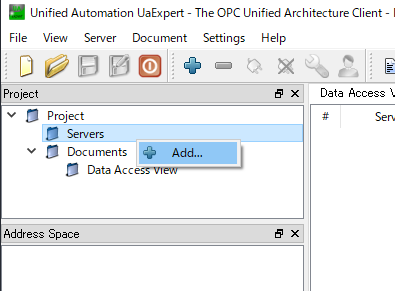
Right-click Servers in Project and click Add... to show the Add Server dialog
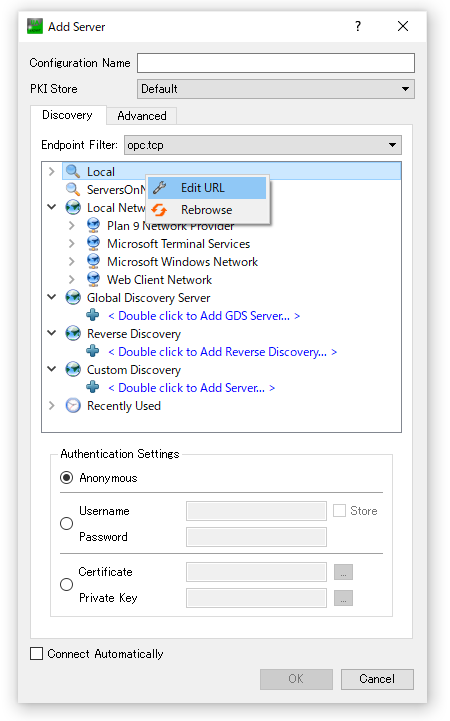
Right-click Local in the Add Server dialog and click Edit URL to show the Edit URL dialog
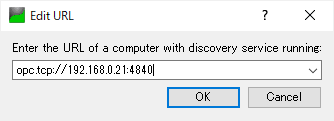
Set the endpoint shown in "Set the OPC UA server to Use" in the PLC preparation
[Example] opc.tcp://192.168.0.21:4840
Connect to the added server
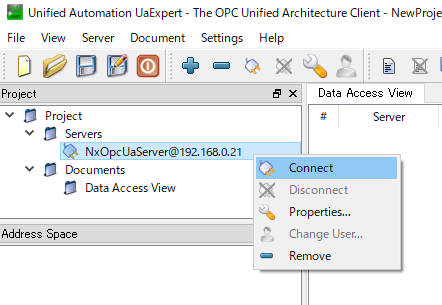
Right-click the added server and click Connect
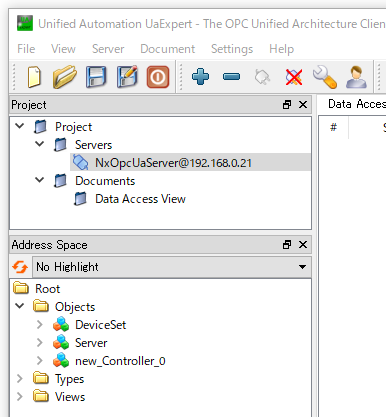
When Object appears in Address Space, the connection has succeeded
Monitoring variables
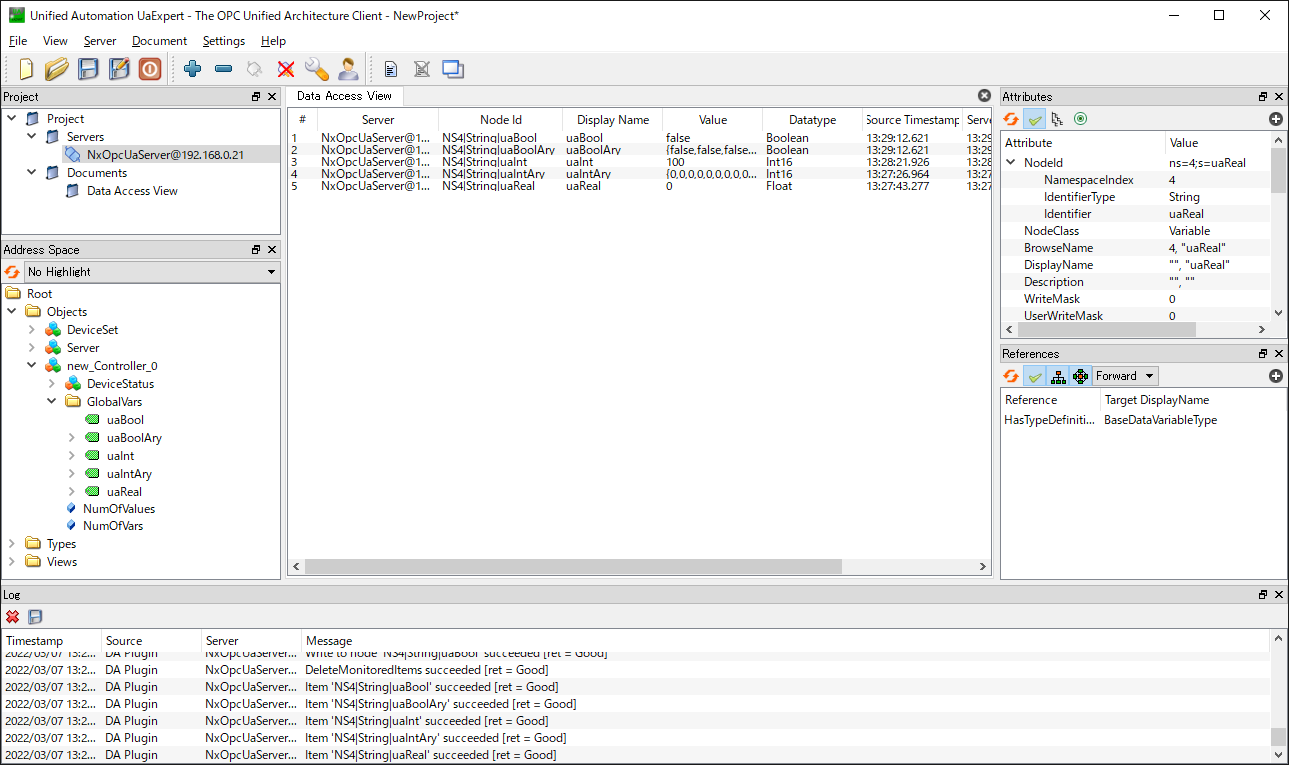
Let's monitor PLC global variables set to Publish Only, Input or Output
Open the Address Space tree on the left and open GlobalVars under new_Controller_0 to show the variable list (new_Controller_0 is the PLC name)
Drag a variable to monitor into the DataAccessView in the middle to show information including its value
FAQ
What is UaExpert?
OPC UA client software provided by Unified Automation, used for checking connections to OPC UA servers and monitoring data.
What is the standard OPC UA port number?
Port 4840 is normally used.
Where can PLC variables be found?
In the GlobalVars folder under the PLC name in Address Space.
What should I check if I cannot connect?
Check the PLC's OPC UA server settings, IP address, port number and firewall settings.