
 McpMes2026
Mitsubishi MC Protocol Communication Test Tool and Server Simulator
Overview
McpMes2026 is a Windows tool for testing MC protocol (3E frame) communication with Mitsubishi Electric PLCs.
You build MC protocol commands on the screen, send them to the target device, and check the sent and received data in the dump display and the log. TCP and UDP, and both binary and ASCII codes, are supported.
In the Pro edition, in addition to decoded responses and sequential sending from a command list, the PC can act as an MC protocol server with virtual device memory, so you can test client programs on host systems and PLCs without the actual device.
Supported models: Mitsubishi Electric PLCs that support the MC protocol (QnA-compatible 3E frame), such as the MELSEC iQ-R, Q and L series
For details of the commands, see Mitsubishi Electric's "MELSEC Communication Protocol Reference Manual" (SH-080008ENG)
Main features
- Create and send MC protocol 3E frame commands (batch read/write, random read/write, read CPU model name, loopback test, remote RUN/STOP)
- TCP and UDP, binary code and ASCII code
- Send raw frames entered by hand
- Dump display of sent and received data, and a communication log
- UI language: Auto / Japanese / English
- Decoded responses and end code display (Pro)
- Save a command list and send it sequentially (Pro)
- MC protocol server (virtual device memory) (Pro)
Free and Pro editions
The Free and Pro editions are the same program. Registering a license key turns it into the Pro edition.
The Free edition features are free of charge.
| Feature | Free | Pro |
|---|---|---|
| Create and send commands (TCP / UDP, binary / ASCII) | ○ | ○ |
| Send raw frames | ○ | ○ |
| Dump display, communication log, end code display | ○ | ○ |
| UI language (Auto / Japanese / English) | ○ | ○ |
| Decoded responses (read values, CPU model name, loopback data, error information) | - | ○ |
| Command list (save, sequential sending, repeat) | - | ○ |
| MC protocol server (virtual device memory) | - | ○ |
How to register a license and license period
Registering a license
- Open [Help] - [Register license...] from the menu
- Paste the license key you received by email and click [Activate] (you can also load the attached .lic file with [Load File...])
- Registration is complete when the title bar shows "McpMes2026 Pro - Licensed to (name)"
- One registration enables the Pro features of all OSD tools on the same PC (such as ComCom2026, CipMes2026, FinsMes2026 and ModbusTcpMes2026)
- It can be registered and used on PCs that are not connected to the internet
License period
The license has no expiration date. Once purchased, that version can be used as the Pro edition indefinitely.
The period during which new versions can be used as the Pro edition (the update period) is 1 year from purchase. (Version upgrades are available for 1 year after purchase.)
- Versions released before the end of the update period can be used as the Pro edition even after it ends
- The update period can be checked with [Help] - [About] from the menu (shown as "Updates until: year-month-day")
McpMes2026 screen
Tested on: Windows 11
Framework: .NET 10.0
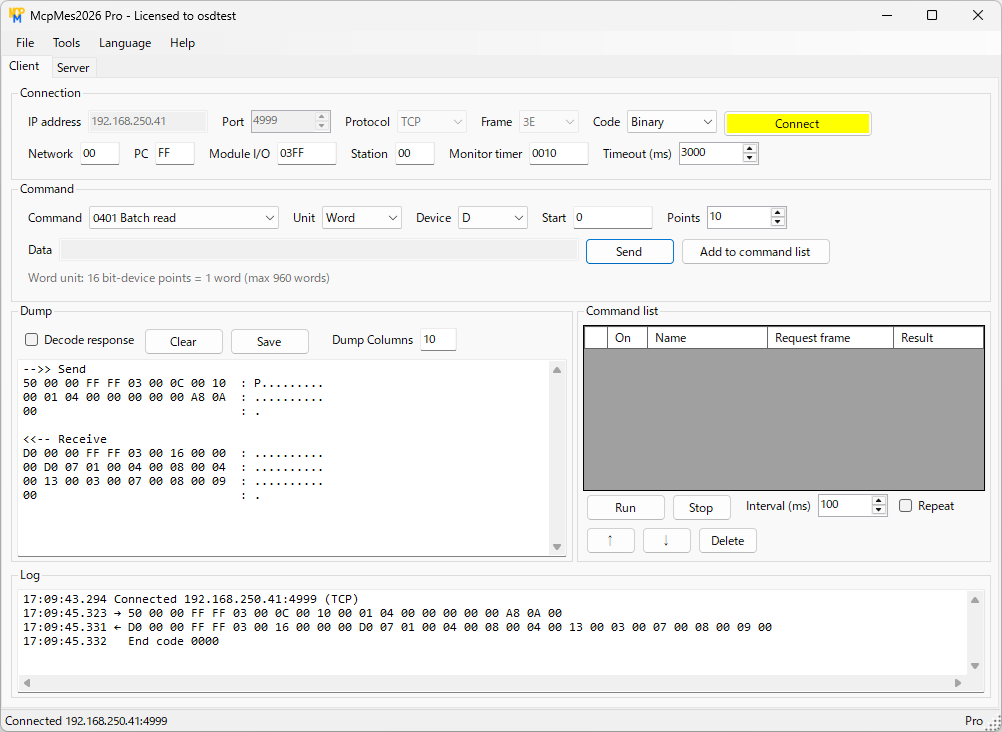
The screen has two tabs: Client and Server.
From top to bottom, the Client tab has the connection settings, the command, the dump display and command list, and the communication log.
How to use
Connection
Set the IP address, port, protocol (TCP / UDP) and code (Binary / ASCII), and click [Connect].
The [Connect] button turns yellow while connected. Click it again to disconnect.
Set the port and code to match the Ethernet settings (open settings) on the PLC side.
| Item | Default | Description |
|---|---|---|
| Network | 00 | Network number (hex) |
| PC | FF | PC number (hex) |
| Module I/O | 03FF | Request destination module I/O number (hex). 03FF is the own station CPU |
| Station | 00 | Request destination module station number (hex) |
| Monitor timer | 0010 | Time to wait for a response (hex, in units of 0.25 s) |
| Timeout (ms) | 3000 | Time McpMes2026 waits for a response |
The frame is the 3E frame. The connection settings are saved on exit and loaded the next time the tool starts.
Creating and sending commands
Select a command, enter the device, start and points or the data, and click [Send] (pressing Enter in the data box also sends).
When you select a command, a hint on how to enter it is shown below the input boxes.
| Command | Description | Input | Data box format (example) |
|---|---|---|---|
| 0401 | Batch read | Unit (word / bit), device, start, points | - |
| 1401 | Batch write | Unit (word / bit), device, start, data | Word: 100 -5 0x1A2B Bit: 1 0 1 1 (points = number of values) |
| 0403 | Random read | Data | D100 D200 W1A M0 (word unit) |
| 1402 | Random write | Unit (word / bit), data | Word: D100=123 W1A=0x55 Bit: M0=1 Y20=0 |
| 0101 | Read CPU model name | - | - |
| 0619 | Loopback test | Data | ABCDE (characters 0-9, A-F) |
| 1001 | Remote RUN | - | - |
| 1002 | Remote STOP | - | - |
| - | Raw frame | Data | Binary: 50 00 00 FF FF 03 00 ... (hex) ASCII: 500000FF03FF00... (as is) |
- Separate values with spaces or commas. Word values are decimal (-32768 to 65535) or hexadecimal with 0x
- Remote RUN / STOP changes the operating state of a real PLC. Use with care
- The subcommands for the MELSEC-Q/L series (0000 / 0001) are used
| Type | Devices | Number notation |
|---|---|---|
| Bit | X, Y, B, SB, DX, DY | Hexadecimal |
| Bit | M, L, F, V, S, SM, TS, TC, SS, SC, CS, CC | Decimal |
| Word | W, SW, ZR | Hexadecimal |
| Word | D, SD, R, Z, TN, SN, CN | Decimal |
Dump display and communication log
Sent data is shown as "-->> Send" and received data as "<<-- Receive" in the dump display (hex and ASCII). The number of bytes per line can be changed with "Dump Columns".
The communication log shows the time, the sent and received frames, and the end code, one line each.
[Clear] clears both, and [Save] saves both to a text file.
Menu bar
File - Open command list... / Save command list... (Pro)
Loads the command list from a file (JSON) or saves it to a file
File - Exit
Exits the application
Tools - Response decode (Pro)
Turns decoded responses on and off. See "Pro features"
Tools - Clear log
Clears the dump display and the communication log
Language
Selects the UI language from Auto (Windows setting) / Japanese / English. The default is Auto
Help - Register license...
Registers or removes a license key
Help - Product page
Opens the product page
Help - About
Shows the version and license information
MC protocol example
Batch read (2 words from D100, 3E frame, binary)
Send:
50 00 00 FF FF 03 00 0C 00 10 00 01 04 00 00 64 00 00 A8 02 00
Response:
D0 00 00 FF FF 03 00 06 00 00 00 34 12 CD AB
In the request, 50 00 is the subheader, 00 FF FF 03 00 is the access route, 0C 00 is the request data length, 10 00 is the monitor timer, 01 04 00 00 is the command (0401) and subcommand (0000), 64 00 00 A8 is the device (D100), and 02 00 is the number of points.
In the response, 00 00 is the end code (0000 = normal completion), followed by D100 = 1234h and D101 = ABCDh. All values are low byte first.
Pro features
Decoded responses
Check [Decode response] above the dump display (or select [Tools] - [Response decode] from the menu) to show the meaning of the end code and the read values below the dump of each received response.
	  終了コード 0000 正常 / OK
	  D100=4660(4660)/0x1234  D101=43981(-21555)/0xABCD
- The device and number of points are taken from the sent command. Raw frames can also be decoded
- Word values are shown as unsigned decimal, signed decimal and hexadecimal
- Double words of a random read, the CPU model name and model code, and whether the loopback data matches are also shown
- When the end code is not 0000, the meaning of the end code and the error information (access route of the responding station, command and subcommand) are shown
- The decoded text is currently shown in Japanese
Command list
Save frequently used commands in a list and send them in order from the top.
Create a command and click [Add to command list] to add its request frame to the list.
- [Run] sends the rows with "On" checked from the top. Check [Repeat] to repeat until you click [Stop]
- Double-click a row to send only that row
- You can set the interval between sends (ms)
- The Result column shows the end code (or timeout / error)
- The request frame column can be edited directly
- Right-click the list for a menu to send, move, delete, open and save
MC protocol server
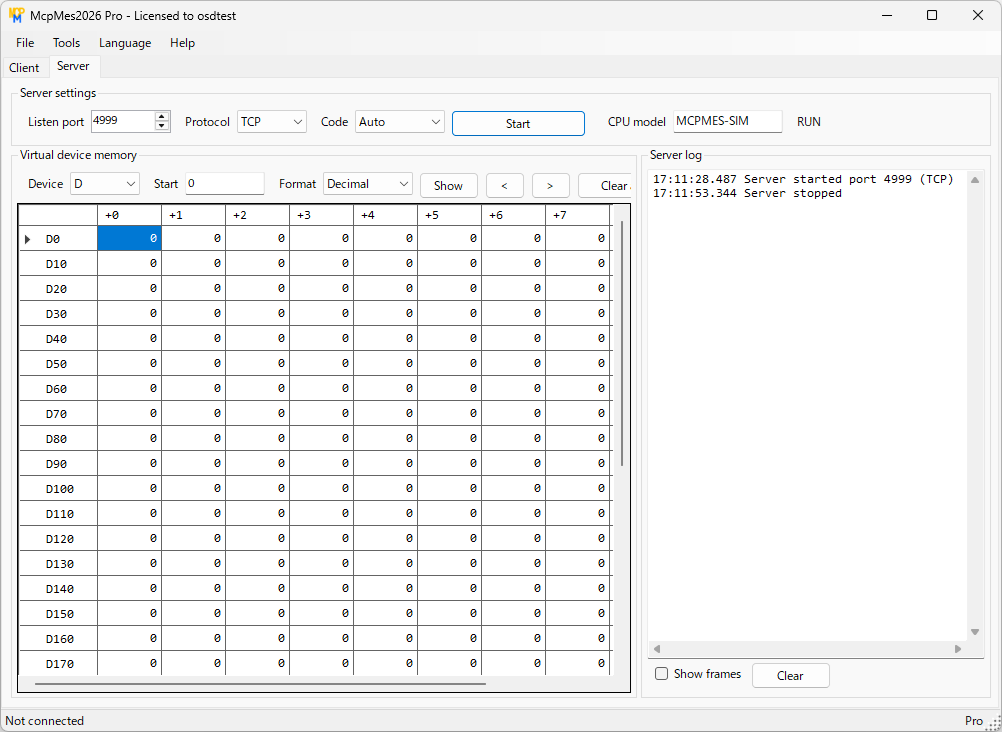
On the Server tab, set the listen port and click [Start]. The [Start] button turns yellow while the server is running.
The PC gets the virtual device memory of a PLC and responds to requests from MC protocol clients (host systems, HMIs, other tools, etc.).
Even without a PLC at hand, you can check reading and writing in client programs.
| Command | Response |
|---|---|
| 0401 / 1401 | Batch read / write of virtual device memory (word unit, bit unit) |
| 0403 / 1402 | Random read / write (word, double word, bit) |
| 0101 | CPU model name (the "CPU model" string on the screen) |
| 0619 | Returns the received data as is |
| 1001 / 1002 | Changes the virtual operating state (RUN / STOP) |
| Others | End code C059 (wrong command / subcommand) |
- Listens on TCP or UDP (default port 5000). Multiple TCP clients can connect at the same time
- With code set to "Auto", it responds to both binary and ASCII. It can also respond to only one of them
- The virtual device memory is 0 to 65535 for each device. Out-of-range addresses return C056, and an out-of-range number of points returns C051
- Values written by clients are shown on the screen immediately. The display can be decimal / signed / hex, and cell values can be edited directly
- For bit devices, double-click a cell to toggle 0 / 1. Cells with 1 are shown in green
- The server log shows the client address, the command and the result. Check [Show frames] to also show the received and sent frames
The first time you start the server, Windows Firewall may ask for permission. Allow it if PLCs or other devices will connect.
To test on one PC, start the server, then on the Client tab connect to IP address 127.0.0.1 on the same port.
FAQ
Is McpMes2026 free?
The Free edition can be used free of charge. Creating and sending MC protocol commands, the dump display and language selection are available in the Free edition. Decoded responses, the command list and the MC protocol server are Pro (paid) features.
Can the PC act as an MC protocol server (instead of a PLC)?
With the server feature of the Pro edition, the PC gets virtual device memory such as X, Y, M, D, W, R and ZR, and responds to requests from TCP and UDP clients (batch and random read/write, etc.).
Are the 4E frame and 1E frame supported?
The client in this version supports only the 3E frame.
Is an internet connection required to use the Pro edition?
No. The license key is verified offline, so it can be registered and used on PCs that are not connected to the internet.
Does the license expire?
The license has no expiration date. The update period, during which new versions can be used as the Pro edition, is 1 year from purchase and can be checked with [Help] - [About]. Versions released before the end of the update period can be used as the Pro edition even after it ends.
Related tools

ComCom
An application that sends messages you create using Ethernet socket communication

CipMes
An application that sends CIP messages using Ethernet socket communication

FinsMes
An application for OMRON FINS communication testing that can also turn the PC into a FINS server

ModbusTcpMes
An application for Modbus TCP communication testing that can also turn the PC into a Modbus TCP server
Viewing data on the network

Download
By downloading, you are deemed to have agreed to the Terms of Use
There are two installers (setups). Each is in a Zip file.
Use the recommended "Standard" setup in most cases. Use the "Full" setup on PCs that cannot connect to the internet.
McpMes2026_Setup_2026.1.0.0.zip (1.6 MB)
Standard (recommended)
Requires .NET 10 Desktop Runtime. If it is not installed, the setup can download it from Microsoft and install it (requires an internet connection and administrator rights).
McpMes2026_Setup_2026.1.0.0_Full.zip (35.1 MB)
Full
Includes .NET. No .NET installation is needed, and it can be installed on PCs that cannot connect to the internet.
To use it without installing, extract McpMes2026.zip and run McpMes2026.exe (requires .NET 10 Desktop Runtime).
How to install
- Right-click the downloaded Zip file, open [Properties], check "Unblock" on the [General] tab and click [OK] (see "If a warning appears" below)
- Extract the Zip file and run McpMes2026_Setup_*.exe inside it
- Follow the instructions on the screen. You can change the installation folder. Administrator rights are not required
- The default installation folder is %LOCALAPPDATA%\Programs\McpMes2026 (per-user installation)
- McpMes2026 is added to the "OSDTools" folder in the Start menu. You can choose to create a desktop icon during installation
- To update, simply install the new version over the current one. Your license and settings are kept
- To uninstall, use Windows [Settings] - [Apps] - [Installed apps]. Your license and settings are kept
If a warning appears
The setup is not code-signed, so when you run the downloaded file, Windows SmartScreen may show "Windows protected your PC".
In that case, click [More info], check that the app name is McpMes2026_Setup_*.exe, and then click [Run anyway].
If you check "Unblock" in the properties of the Zip file before extracting it, this warning does not appear.
("Unblock" is next to "Security: This file came from another computer and might be blocked to help protect this computer." at the bottom of the [General] tab in the Zip file's [Properties])
The first time you start the server feature (Pro), Windows Firewall may ask for permission. Allow it if other devices will connect.
Verifying the files (SHA-256)
You can check that the downloaded file has not been tampered with by its SHA-256 hash.
	McpMes2026_Setup_2026.1.0.0.zip
	SHA-256: 4EACEFFE3C46DBF78D9BB17F9B277E9EA7BD30D54665CD2628F0D38F1D94B1EF

	McpMes2026_Setup_2026.1.0.0_Full.zip
	SHA-256: 242CFAD3EB9EA09AEC85C54C7BAFD7852B0DD08262FB8F77B8843902A275B0DA
Run the following command in PowerShell and check that the displayed value (Hash) matches the value above.
Get-FileHash .\McpMes2026_Setup_2026.1.0.0.zip -Algorithm SHA256
About the Pro edition
The Pro edition is the same program as the Free edition with a license key registered. You do not need to download it again.
For details on using the Pro edition, see the included McpMes2026_Pro_en.md (Japanese: McpMes2026_Pro.md).
OSD Tools Pro License
Enables the Pro features of OSD tools such as McpMes, FinsMes, ModbusTcpMes, ComCom and CipMes.
- One license can be registered on one computer
- Includes 1 year of updates from the date of purchase (versions released before then keep working after that)
- Your license key is shown on screen and sent by email right after purchase
¥5,500 (JPY, tax included)
Please check that the tool works with the free edition before purchasing. Payment by credit card, Apple Pay or Google Pay.