
EQUIPMENT STATUS LOGGER
 EquipStatEquipment Status Logger
Collect the operating status and errors of your equipment from PLCs,
and see "now" and "history" in a web browser.
Up to 50 OMRON, KEYENCE and Mitsubishi Electric PLCs. All you need is one PC.
Records PLCs from different manufacturers on one screen
Collection, recording (SQLite) and the web server in one app. No cloud, no internet connection
Try every feature with one piece of equipment for 30 days after installation
EquipStat introduction video (54 seconds, with music)
What is EquipStat?
EquipStat is a Windows application that collects the operating status and errors of factory equipment from PLCs, records them, and lets you view the "current status" and the "operating history (Gantt chart)" in a web browser.
It keeps a record, straight from the PLC data, of which machine stopped, when and for how long, and which error occurred and when. The records can also be viewed from browsers on other PCs and smartphones on the same network.
EquipStat only reads from the PLC and never writes to it, so you can safely connect it to equipment in production.
How it works
- OMRON (FINS)
- KEYENCE (Host Link)
- Mitsubishi (MC)
- EtherNet/IP (CIP)
 EquipStat (Windows PC)
Collect → record (SQLite)
Built-in web server
Other PCs / smartphones
(same network)
To keep the number of requests low, each read is combined into one request: multiple-area read for FINS, random read for MC, monitor registration for KV, and Multiple Service Packet for CIP.
Main features
Status from 16 bits
Assign a state such as "Running", "Stopped" or "Setup" to each of the 16 status bits. When several bits are on, the bit with the lowest number wins.
64 error bits and 8 error code words
Error bits are recorded with error names. Error codes such as alarm numbers can be read from up to 8 words and shown with the labels in the master. Multiple errors at the same time are all recorded.
Current status as tiles
A tile for each machine shows the state, its duration and active errors, refreshed every 5 seconds. Errors get a red frame and offline machines are hatched, so you can see them at a glance.
Operating history as a Gantt chart
Choose machines and a period (last 1, 8 or 24 hours, or any dates) to see state changes. Expand a row to show the periods of error bits and error codes as well.
Set up on screen, check on the spot
Enter the protocol, IP address and addresses, then use "Read test" to check bit on/off and the resulting state before saving. Sequential address entry (W100.15 → W101.00, etc.) is supported.
Collection that keeps running
After a communication loss it reconnects automatically and records nothing for the gap. A watchdog restarts stopped workers, and collection continues in the system tray when the window is closed.
Browser screen
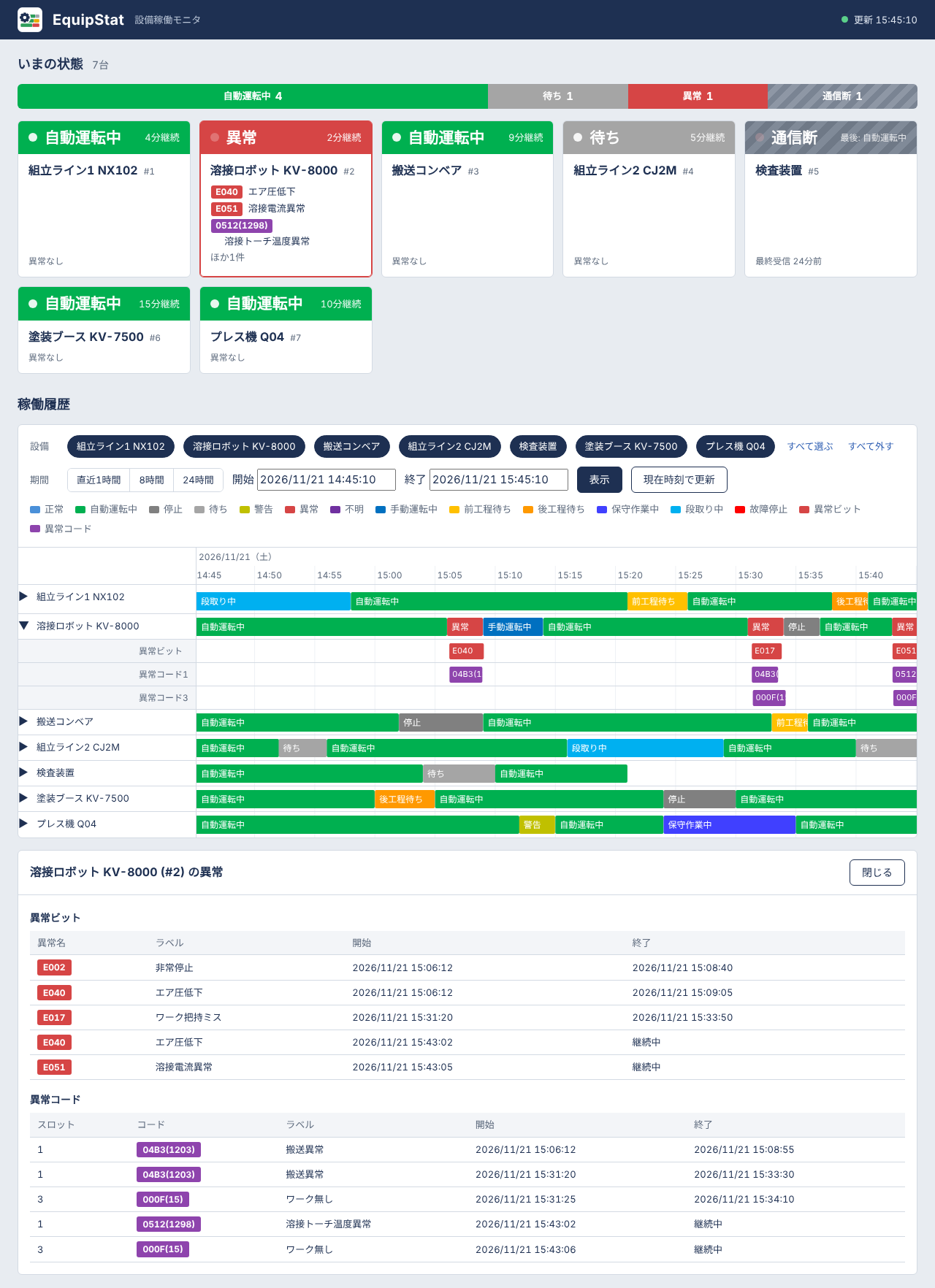
Click [ブラウザで開く] (Open in browser) on the EquipStat toolbar to open http://localhost:8000/ (the port can be changed).
From other PCs and smartphones, open the URL copied with [表示] - [ブラウザのURLをコピー] (View - Copy browser URL), for example http://PC-name:8000/.
Operating history (Gantt chart) at a glance
- Running
- Stopped
- Starved
- Setup
- Error
- Blank = communication lost
Zoom with the mouse wheel and drag to move. The names and colors of states can be changed freely in the master (13 states are registered from the start). State names can also be entered in English.
EquipStat application screens
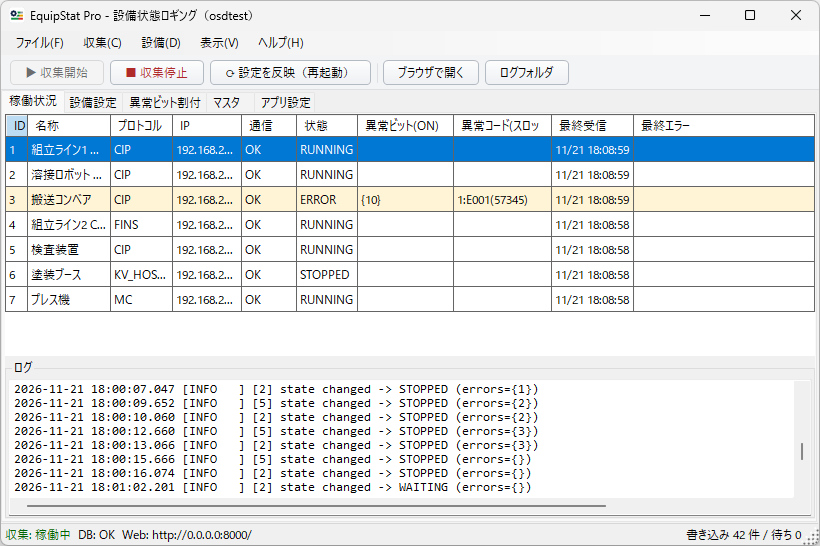
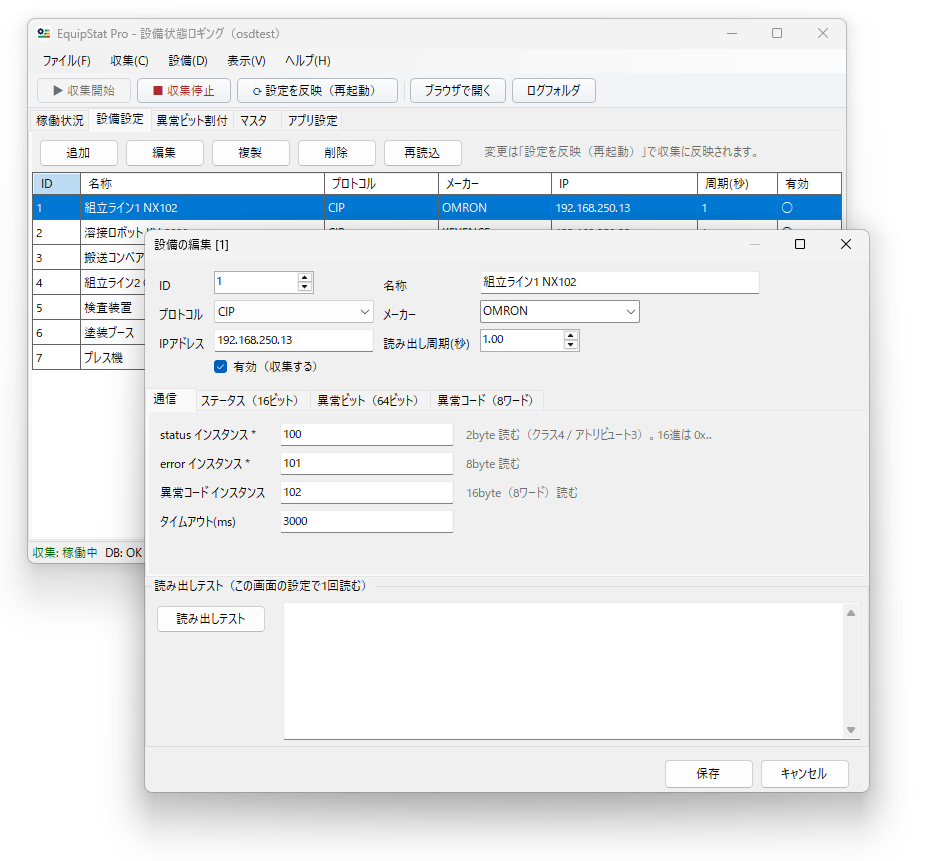
In the application you register equipment, assign error bits, edit the masters and app settings, and start and stop collection.
The [稼働状況] (Operating status) tab shows, for each machine, the communication status (OK / ERROR), the current state, the error bits and error codes that are on, the last received time and the last error. The log below shows state changes and communication.
The status bar at the bottom shows the state of collection, the database and the web server.
Supported PLCs and protocols
| Protocol | Target | Communication (default port) |
|---|---|---|
| FINS | OMRON CS / CJ / NJ / NX series, etc. | FINS/UDP (9600) |
| KV Host Link | KEYENCE KV series (with Host Link) | Host Link/UDP (8501) |
| MC | Mitsubishi Electric Q / L / iQ-R / iQ-F series, etc. | MC protocol 3E frame, binary/UDP (4999, etc.) |
| CIP | Devices supporting the EtherNet/IP assembly object (KEYENCE KV, OMRON NJ/NX, etc.) | EtherNet/IP (TCP 44818) |
What to prepare in the PLC
| Data | Size | How to specify |
|---|---|---|
| Status | 16 bits | 16 individual bit addresses, or one word |
| Error bits | 64 bits | 64 individual bit addresses, or 8 bytes (4 words) from a start address |
| Error codes (optional) | 8 words | An address for each word (value 0 means "no error") |
For CIP, no individual addresses are specified. The areas assigned to instance IDs in the tag settings (tag sets) are read in one go.
Address formats and PLC-side settings are described in the included manual (EquipStat_Manual.md, Japanese).
Trial and Pro
The trial and the Pro edition are the same program. It works as a trial for 30 days after installation, and becomes the Pro edition when you register a license key.
| Trial (30 days) | After the trial (not registered) | Pro | |
|---|---|---|---|
| Collection | 1 unit | Not available | Up to 50 |
| Equipment settings | 1 unit | 1 unit | Up to 50 |
| Screens, masters, browser viewing | Yes | Yes | Yes |
- Apart from the number of units, there is no difference in features
- After the trial ends, your recorded data and settings remain. Register a license to continue collecting
- The remaining days are shown in the title bar and in [ヘルプ] - [バージョン情報] (Help - About)
How to register a license and the update period
Registering a license
- Open [ヘルプ] - [ライセンス...] (Help - License...) from the menu
- Paste the license key you received by email and click [登録] (Register). You can also load the attached .lic file with [ファイルから読込...] (Load from file...)
- Registration is complete when the title bar shows "EquipStat Pro - 設備状態ロギング (name)"
- If you register while collecting, you are asked whether to restart collection when you close the license window. Click [はい] (Yes) to collect up to 50 units
- It can be registered and used on PCs that are not connected to the internet
- EquipStat is a separate product from OSD Tools (ComCom, etc.). OSD Tools license keys cannot be used with EquipStat
Update period
The license has no expiration date.
The period during which you can use new versions (the update period) is 1 year from purchase.
- Versions released before the end of the update period can be used as the Pro edition even after it ends
- Past versions can be downloaded from "EquipStat past versions" (Japanese page)
- The check uses the release date of the app, not the PC's date, so a version within the period will never suddenly stop working
- If you install a version released after the update period, reinstall a version within the period from "過去のバージョン..." (Past versions...) on the notice screen. Your data and settings are kept
Getting started
- Install and add equipmentInstall the trial and enter the name, protocol, IP address and addresses in [設備設定] (Equipment settings).
- Check with a read testRead once before saving to confirm bit on/off and the resulting state.
- Start collecting and view in a browser[▶ 収集開始] (Start collection) starts recording. [ブラウザで開く] (Open in browser) shows the current status and history.
System requirements
| OS | Windows 10 / 11 (64-bit) |
|---|---|
| Language | Japanese only (application, browser screens and manual) |
| .NET | Full setup: not required (included) Standard setup: .NET 10 Desktop Runtime and ASP.NET Core 10 Runtime (can be installed during setup if missing) |
| Browser | Microsoft Edge, Google Chrome, etc. (smartphone browsers also work) |
| Network | Ethernet that can reach the PLCs. No internet connection required |
| Data | %LOCALAPPDATA%\EquipStat (SQLite). Can be backed up even while collecting with [ファイル] - [DBのバックアップ...] (File - Back up DB...) |
Download
By downloading, you are deemed to have agreed to the Terms of Use
There are two setups. Both are in Zip files and install the same application.
Use the "Standard" setup on PCs that can connect to the internet at least during setup, and the "Full" setup on PCs that cannot.
EquipStat_Setup_1.0.0.0.zip (2.7 MB)
Standard
Requires .NET 10 Desktop Runtime and ASP.NET Core 10 Runtime. If they are not installed, the setup can download them from Microsoft and install them (requires an internet connection and administrator rights).
EquipStat_Setup_1.0.0.0_Full.zip (43.9 MB)
Full
Includes .NET. No .NET installation is needed, and it can be installed on PCs without an internet connection.
How to install
- Right-click the downloaded Zip file, open [Properties], check "Unblock" on the [General] tab and click [OK] (see "If a warning appears" below)
- Extract the Zip file and run EquipStat_Setup_*.exe inside it
- Follow the instructions on the screen (the setup screens are in Japanese). Administrator rights are not required
- The installation folder is %LOCALAPPDATA%\Programs\EquipStat (per-user installation)
- Start it from the "EquipStat" folder in the Start menu
- Options: a desktop icon and a firewall rule. To view from other PCs or smartphones, turn on "ファイアウォールで EquipStat の通信を許可する" (Allow EquipStat through the firewall). Only the same network is allowed, and administrator confirmation is shown only for this option
- To update, install the new version over the current one. Your license, settings and recorded data are kept
- To uninstall, use Windows [Settings] - [Apps]. Your data (%LOCALAPPDATA%\EquipStat) and license are kept
If a warning appears
The setup is not code-signed, so when you run the downloaded file, Windows SmartScreen may show "Windows protected your PC".
In that case click [More info], check that the app name is EquipStat_Setup_*.exe, and click [Run anyway].
If you check "Unblock" in the Zip file's properties before extracting it, this warning does not appear.
("Security: This file came from another computer..." at the bottom of the [General] tab in the Zip file's [Properties])
Verify the files (SHA-256)
You can check that the downloaded file has not been tampered with by its SHA-256 hash.
	EquipStat_Setup_1.0.0.0.zip
	SHA-256: 6CDAA255E627FA0FA5EDAE68B703D1C67343FA66EE2D125A283735BCF97C4AB6

	EquipStat_Setup_1.0.0.0_Full.zip
	SHA-256: B50EC574424A8730D22EE96DC2D02068F00ECCB079B437A2AD1DF756502975B8
Run the following command in PowerShell and check that the displayed value (Hash) matches the value above.
Get-FileHash .\EquipStat_Setup_1.0.0.0.zip -Algorithm SHA256
EquipStat Pro
The trial and the Pro edition are the same program. You do not need to download it again.
The license key is checked offline, so it can be registered and used on PCs on the shop floor that are not connected to the internet.
EquipStat Pro License
Lets EquipStat collect data from up to 50 pieces of equipment.
- One license can be registered on one PC running EquipStat (up to 50 pieces of equipment)
- Includes 1 year of updates from the date of purchase (versions released before then keep working after that)
- Your license key is shown on screen and sent by email right after purchase
¥33,000 (JPY, tax included)
Please check communication with your PLCs and the operation with the trial before purchasing. The application is available in Japanese only. Payment by credit card, Apple Pay or Google Pay.
This is a separate product and license from OSD Tools Pro.
FAQ
Is the application available in English?
No. The application, the browser screens and the manual are in Japanese only. Equipment names, state names, error names and labels can be entered in any language, including English.
Do I need to add anything to the PLC program?
Prepare 16 bits that represent the equipment status and error bits (up to 64 bits). Error codes (up to 8 words) are optional. EquipStat only reads from the PLC and never writes to it.
Do I need to set up a server or database?
No. Collection, recording (SQLite) and the web server all run inside EquipStat, so one Windows PC is enough. No internet connection is required.
Can I mix PLCs from different manufacturers?
Yes. You can choose the protocol (FINS / KV Host Link / MC / CIP) for each machine, so OMRON, KEYENCE and Mitsubishi Electric equipment can be recorded and shown together on one screen.
Can I use my OSD Tools Pro license?
No. EquipStat is a separate product from OSD Tools (ComCom, CipMes, etc.) and has its own license.
Is my data deleted when the trial ends?
No. When the trial ends, only collection stops. You can still view the recorded data and use the settings. Register a license to continue collecting.
Does the license expire?
The license has no expiration date. The update period, during which you can use new versions, is 1 year from purchase. Versions released before the end of the update period can be used as the Pro edition even after it ends. Past versions can be downloaded from "EquipStat past versions" (Japanese page).
What if I want to record more than 50 machines?
One PC can collect from up to 50 machines. For more than 50, split them across PCs and purchase one license for each PC.
Can I move my data to another PC?
Exit EquipStat, then copy settings.json and equipstat.db in the data folder (%LOCALAPPDATA%\EquipStat) to the same location on the new PC. Register the license again on the new PC and stop using it on the old PC (one license is for one PC).
Related tools
Tools to check PLC communication at the frame level. Also useful for checking the connection before using EquipStat


